GIT
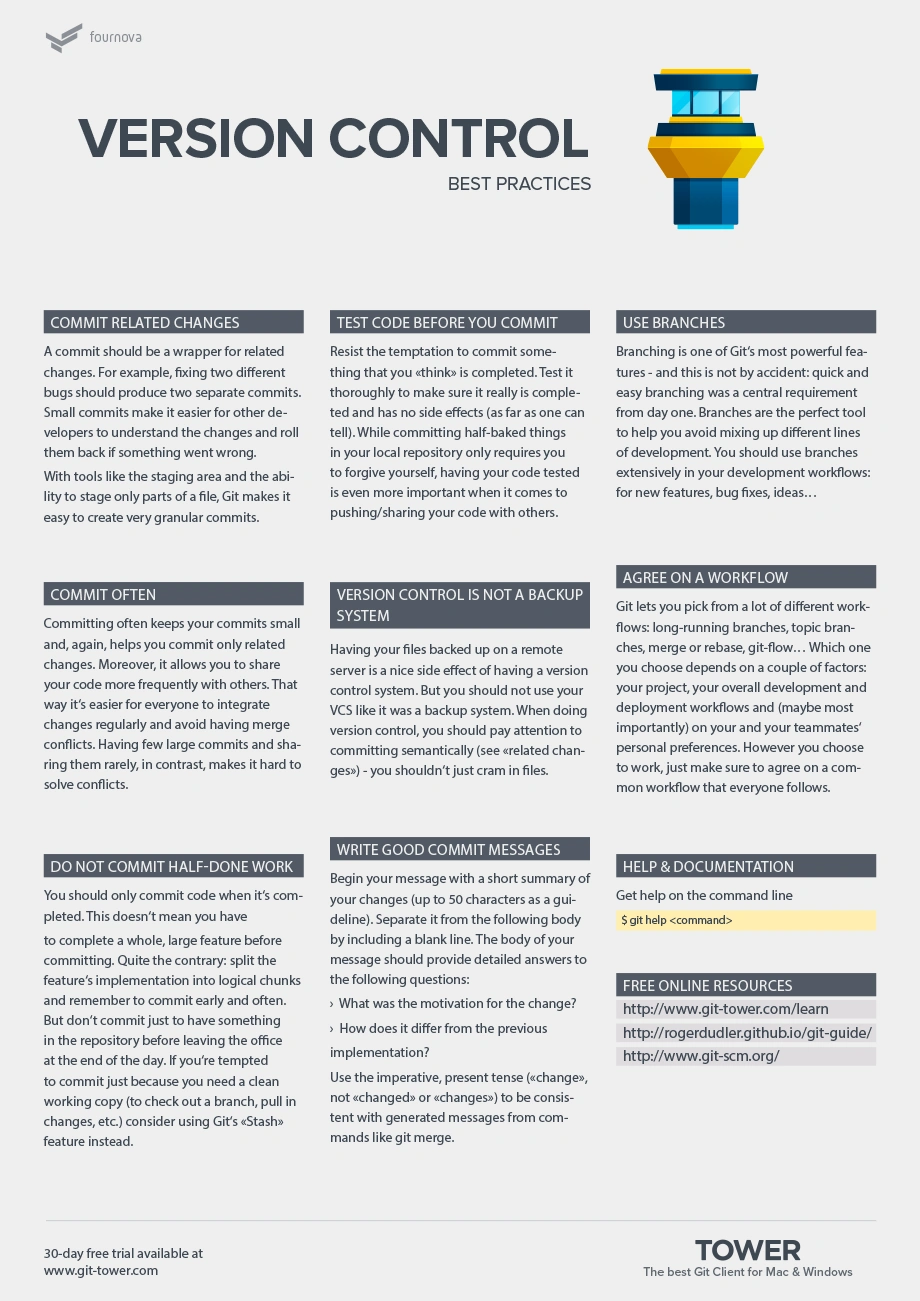
Git works with three different trees: the working directory, staging area, and commit history.
Table of Contents
-
Learn
-
Commands
-
- verbose
History
https://www.youtube.com/watch?v=Uq41qdjJ8Xs
Learn
Tutorial
- GIT TOWER LEARN
- https://www.pluralsight.com/courses/code-school-git-real
- https://docs.github.com/en/get-started/quickstart/set-up-git
- https://www.freecodecamp.org/news/how-not-to-be-afraid-of-git-anymore-fe1da7415286
- https://betterprogramming.pub/git-commands-to-live-by-349ab1fe3139
- https://www.atlassian.com/git/tutorials/advanced-overview
- https://gitexplorer.com/
- https://dev.to/unseenwizzard/learn-git-concepts-not-commands-4gjc
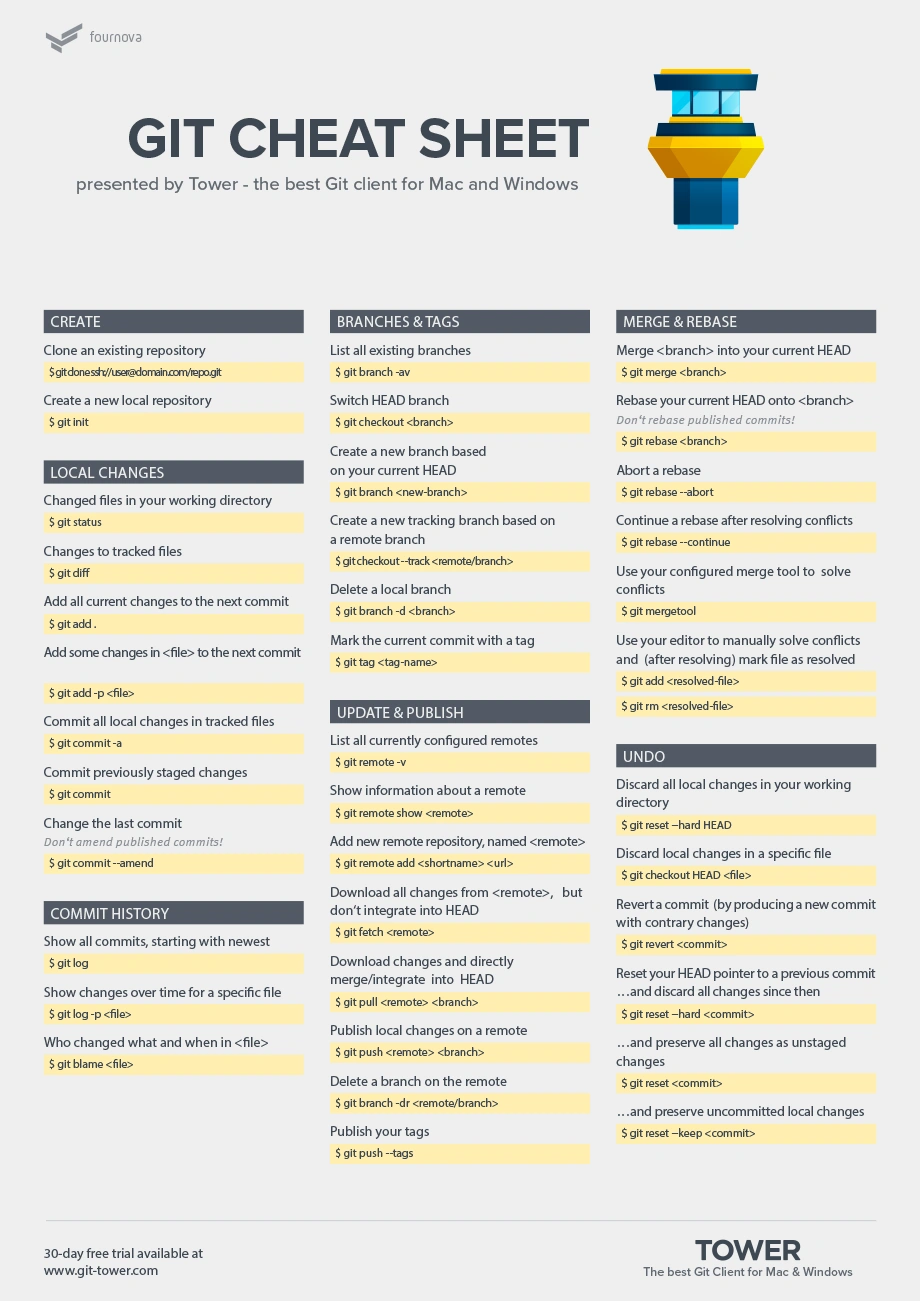
General Workflow
-
Create a namespaced feature branch from develop
${JIRA_TICKET}/short-description- feat/short-description
- fix/...
- doc/...
- refactor/...
- cleanup/...
- .../...
git fetch
git checkout develop
git checkout -b `namespace/your-branch-name` -
Make commits to your branch
npm run committo use commitizen
-
When you've finished with your fix or feature, rebase upstream changes into your branch. Carefully resolve any merge conflicts if they occur.
# ensure you're on develop branch
git checkout develop
# Fetch upstream changes
git fetch --all
# Pull upstream develop changes
git pull

# Rebase your feature branch
git checkout `namespace/your-branch-name`
git rebase develop

# If you run into merge conflicts, fix the affected files and then
git add .
git rebase --continue -
Push your branch to the repository
git push -u origin `namespace/your-branch-name` -
Submit a pull request directly to develop. Include a description of your changes.
-
Your pull request will be reviewed by another team member. The point of code reviews is to help keep the codebase clean and of high quality.
-
Fix any issues raised by your code reviewer and push your fixes as a single new commit.
-
Once the pull request has been reviewed, it can be merged in.
-
Last, but not least: delete your branch on GitHub
If at any point something seems off about your progress in the workflow (e.g. needing to force push, ambiguous merge conflicts), please ask/work with another team member to resolve those issues. Ideally, first search through closed issues to see if it's been addressed before. If it hasn't, please open up an issue to document the following:
- what went wrong
- what was expected
- associated logs and screen shots, there's no such thing as oversharing(unless it's your password)
- proposed solution(or what you would like to see)
- Pull request with a potential fix
Confirm account login
ssh -T git@github.com``
status
git status: This is the basic Git command to check the status of your repository.
short
git diff --name-only HEAD
short
git status -s
short
git status --porcelain
ignore by filetype (zsh)
git status -- . ":!*.md"
or
git status -- . ":(exclude)*.md"
or
git diff --name-only ":!*.md"
Powershell
git status -- . ':!:*.png' ':*.md'
Pathspec
--: It separates the Git command from the pathspec (file path specification) that follows.
.: Represents the current directory or the root of the repository. It indicates that you want to include all files and subdirectories in the current directory in the Git status.
":*.md": This is a pathspec pattern enclosed in double quotes. It instructs Git to match only files with the .md extension, which are markdown files.
Pathspec patterns are used by various Git commands to specify files and directories. The interpretation of pathspec patterns can vary depending on the shell you are using. Here are some common shell environments and how they handle pathspec patterns:
-
Unix/Linux Shell (e.g., Bash):
- Globs: Unix-style glob patterns are often supported in shells, including wildcard characters like
*and?. For example,*.mdmatches files ending with.md. - Quoting: In Unix/Linux shells, you may need to quote or escape certain characters in pathspec patterns to prevent the shell from expanding them. For example,
":*.md"or':*.md'can be used to prevent shell expansion.
- Globs: Unix-style glob patterns are often supported in shells, including wildcard characters like
-
Windows Command Prompt:
- Globs: Windows Command Prompt supports glob patterns using
*and?as wildcard characters. For example,*.mdmatches files ending with.md. - Quoting: Windows Command Prompt generally does not require quoting or escaping of characters within pathspec patterns.
- Globs: Windows Command Prompt supports glob patterns using
-
PowerShell (Windows):
- Globs: PowerShell supports glob patterns using
*and?as wildcard characters. For example,*.mdmatches files ending with.md. - Quoting: PowerShell generally does not require quoting or escaping of characters within pathspec patterns.
- Globs: PowerShell supports glob patterns using
-
Git Bash (Git's default shell on Windows):
- Globs: Git Bash uses Unix-style glob patterns, so wildcard characters like
*and?can be used. For example,*.mdmatches files ending with.md. - Quoting: Git Bash uses Unix-style quoting rules, so you can typically use
":*.md"or':*.md'to prevent shell expansion.
- Globs: Git Bash uses Unix-style glob patterns, so wildcard characters like
It's important to note that the behavior of pathspec patterns may also depend on the specific Git command being used. For more advanced pattern matching, Git also supports regular expressions and other specialized syntax in certain commands.
When working with pathspec patterns, it's a good practice to test them in your specific shell environment to ensure accurate matching and behavior.
clean
git clean -fd
Bash Profile
nano .bash_profile
vim .bash_profile
log
git log
changes on your current branch versus develop
git log develop..
Formatting git log
git log --pretty=format:"%C(yellow)%an (%ar) %h [%d]: %s" --color
git log --pretty=format:"%h%x09%an%x09%ad%x09%s" --date=short

a1dcc474        Abhinav Ray     2019-09-12      feat(add-to-cart): new branch


git log --pretty=format:"%ae committed on %cd"

`alice.holmes@pluralsight.com` committed on Tue Apr 10 12:31:45 2018 -0400

git log

git shortlog

--oneline
  e11e9f9 Commit message here

--decorate
  shows "(origin/master)"

--graph
  shows graph lines

--date=relative
-- as a standalone argument (i.e. not part of another argument) is used by many UNIX command line programs to indicate that anything that follows it is not an argument.
reset
Revert a file that has been changed
you can use the below command for reset of single file
git checkout HEAD -- path_to_file/file_name

git reset -- my-file.txt
Git Submodule
- A submodule is a repository embedded inside another repository. The submodule has its own history; the repository it is embedded in is called a superproject.
- the superproject tracks the submodule via a
gitlinkentry in the tree - Submodules allow you to keep a Git repository as a subdirectory of another Git repository. This lets you clone another repository into your project and keep your commits separate.
- There is a
foreachsubmodule command to run some arbitrary command in each submodule. This can be really helpful if you have a number of submodules in the same project. - switching branches with submodules in them can also be tricky. If you create a new branch, add a submodule there, and then switch back to a branch without that submodule, you still have the submodule directory as an untracked directory:
git lf will be replaced with crlf
UNIX (Mac and Linux) >> LF
Windows >> CRLF
Issue arises when Windows and Non-Windows systems are working on same git repo.
fix
git config --global core.autocrlf true

git add --renormalize .
ssh
gitlab recommended: ED25519_SK (Available in GitLab 14.8 and later.)
ssh-agent ssh-agent is your personal key-store.
Both
Generate new SSH Key
ssh-keygen -t rsa -C "`youremail@gmail.com`"
SSH Login / test connection
ssh -v `git@bitbucket.org`

ssh -T `git@gitlab.com`

ssh -v `git@gitlab.com`
MAC
Lists the files in your .ssh directory, if they exist
ls -al ~/.ssh
Windows
may not work
notepad C:\Users\<your account>\.ssh\id_rsa.pub
fetch
The git fetch command downloads commits, files, and refs from a remote repository into your local repo. Fetching is what you do when you want to see what everybody else has been working on.
git fetch --all
pull
pull changes from origin/main into main while working in another branch
git fetch origin master:master
Push
upload your changes (git add)
flags
git push -f origin branch

git push -u origin branch --dry-run
git-restore | to undo changes
undo the last commit
- To keep the changes from the commit you want to undo:
- it only undoes 1 commit each time you run it
git reset --soft HEAD^
- To destroy the changes from the commit you want to undo:
git reset --hard HEAD^
Restore Deleted File(s)
git checkout <commit hash> -- <filename>
Merge
An old joke says that if you fall off a tall building, the falling isn't going to hurt you, but the landing will. So with source code: branching is easy, merging is harder.
Init
Create a new repository
git clone https://gitlab.com/abhiraynj/osgassets.git
cd osgassets
touch README.md
git add README.md
git commit -m "add README"
git branch -M main
git push -u origin master
Existing folder
cd existing_folder
git init
git remote add origin https://gitlab.com/abhiraynj/osgassets.git
git add .
git commit -m "Initial commit"
git push -u origin master
Existing Git repository
cd existing_repo
git remote rename origin old-origin
git remote add origin https://gitlab.com/abhiraynj/osgassets.git
git push -u origin --all
git push -u origin --tags
CRLF
The warning "LF will be replaced by CRLF" says that you (having autocrlf=true) will lose your unix-style LF after commit-checkout cycle (it will be replaced by windows-style CRLF). Git doesn't expect you to use unix-style LF under windows.
PS What to choose when installing git for Windows?
If you're not going to use any of your projects under Unix, don't agree with the default first option. Choose the third one (Checkout as-is, commit as-is). You won't see this message. Ever.
Clone
| Clone A Repository | Steps |
|---|---|
| 1b Open vs code click on clone repository | 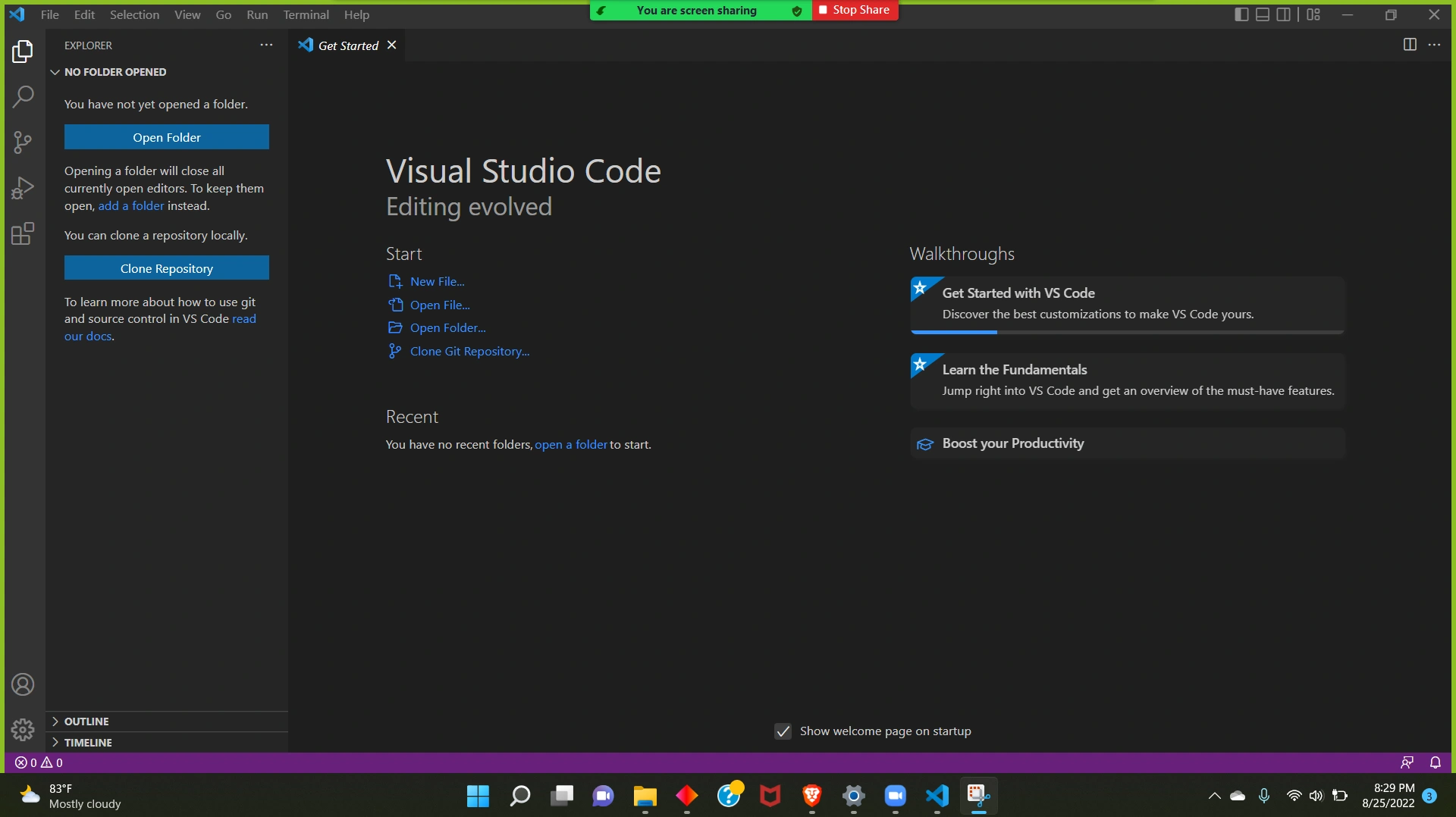 |
| 1c choose github | 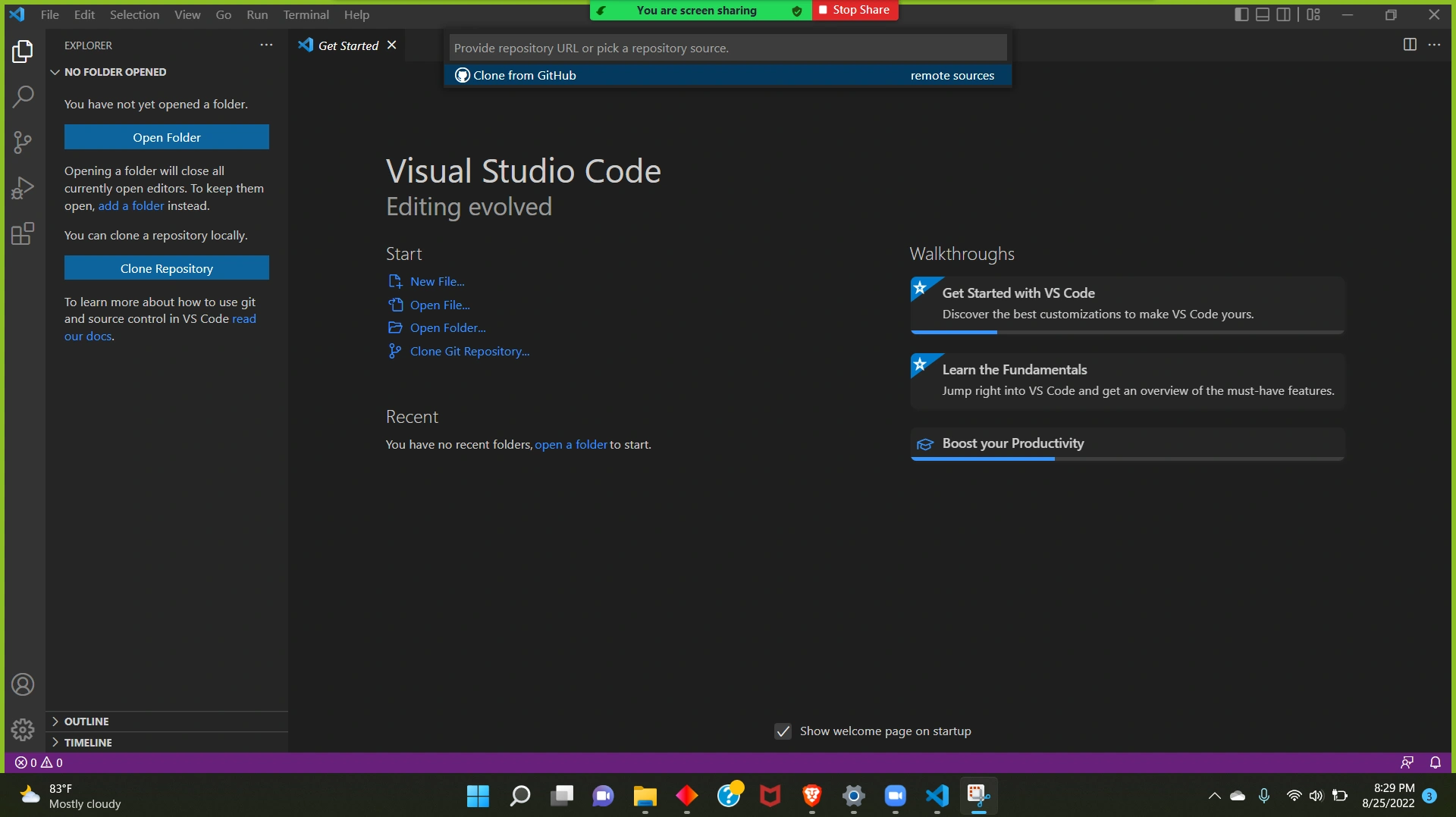 |
| 1d Click allow | 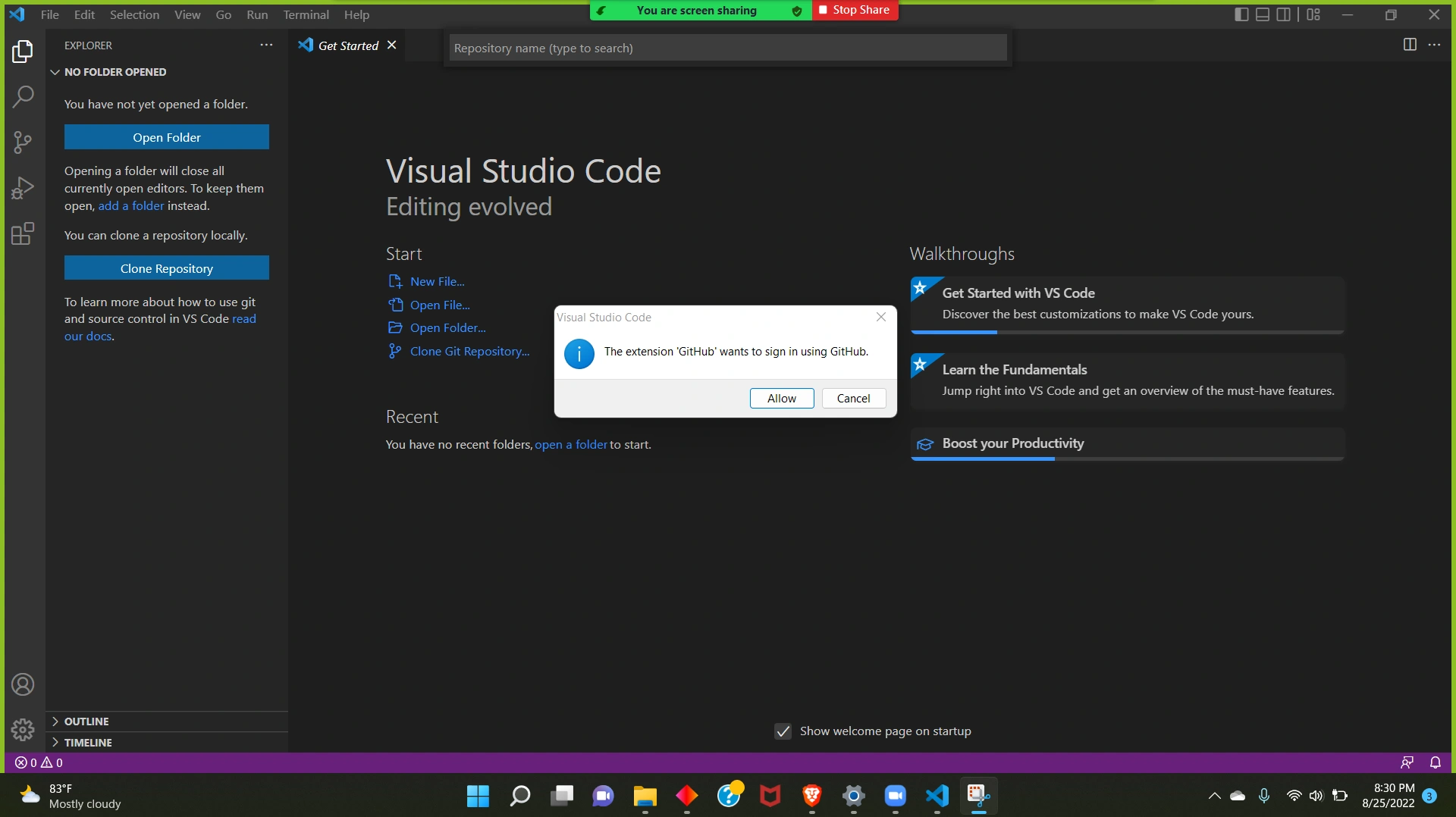 |
| CLICK OPEN | 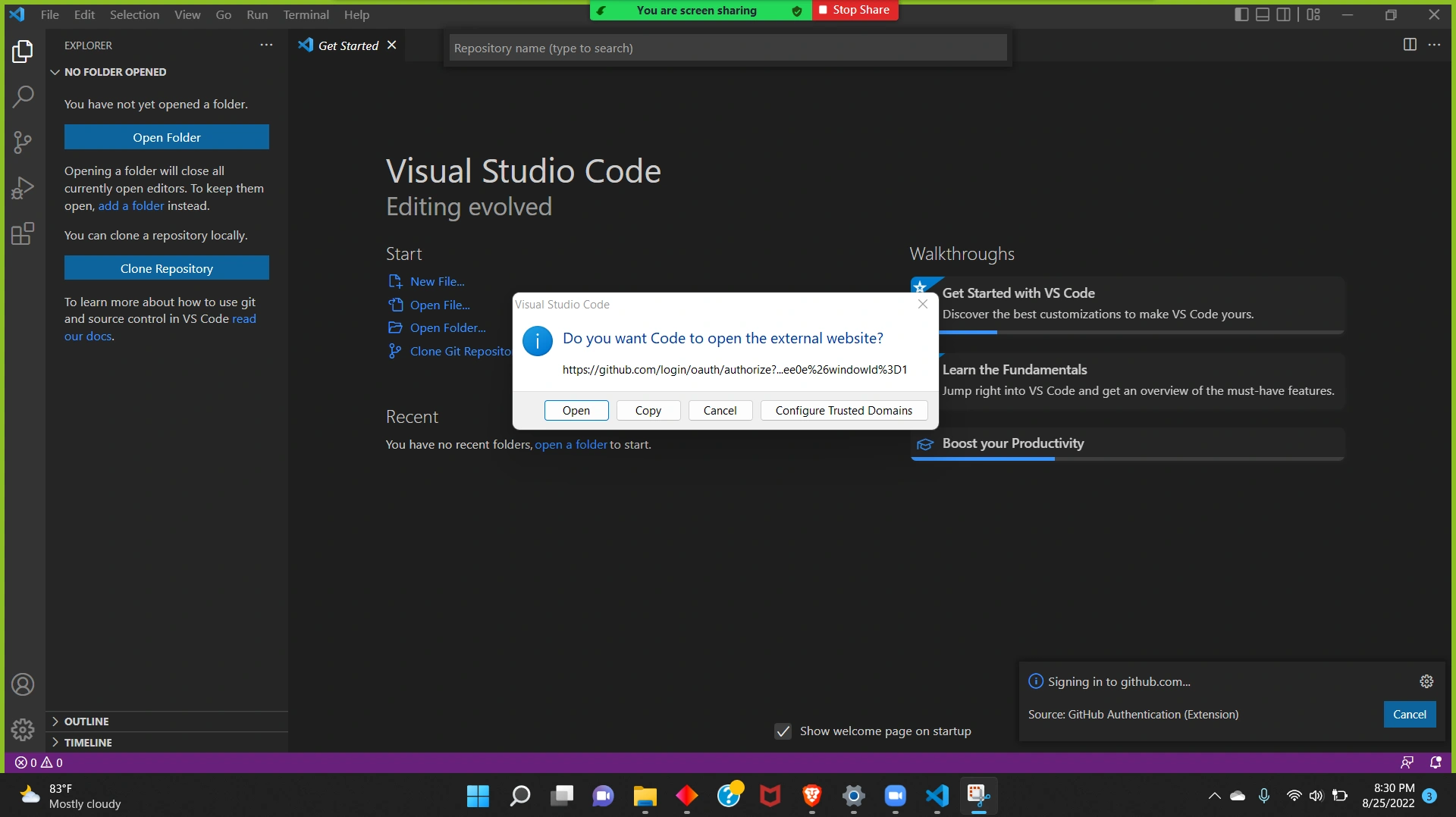 |
| CLICK OPEN | 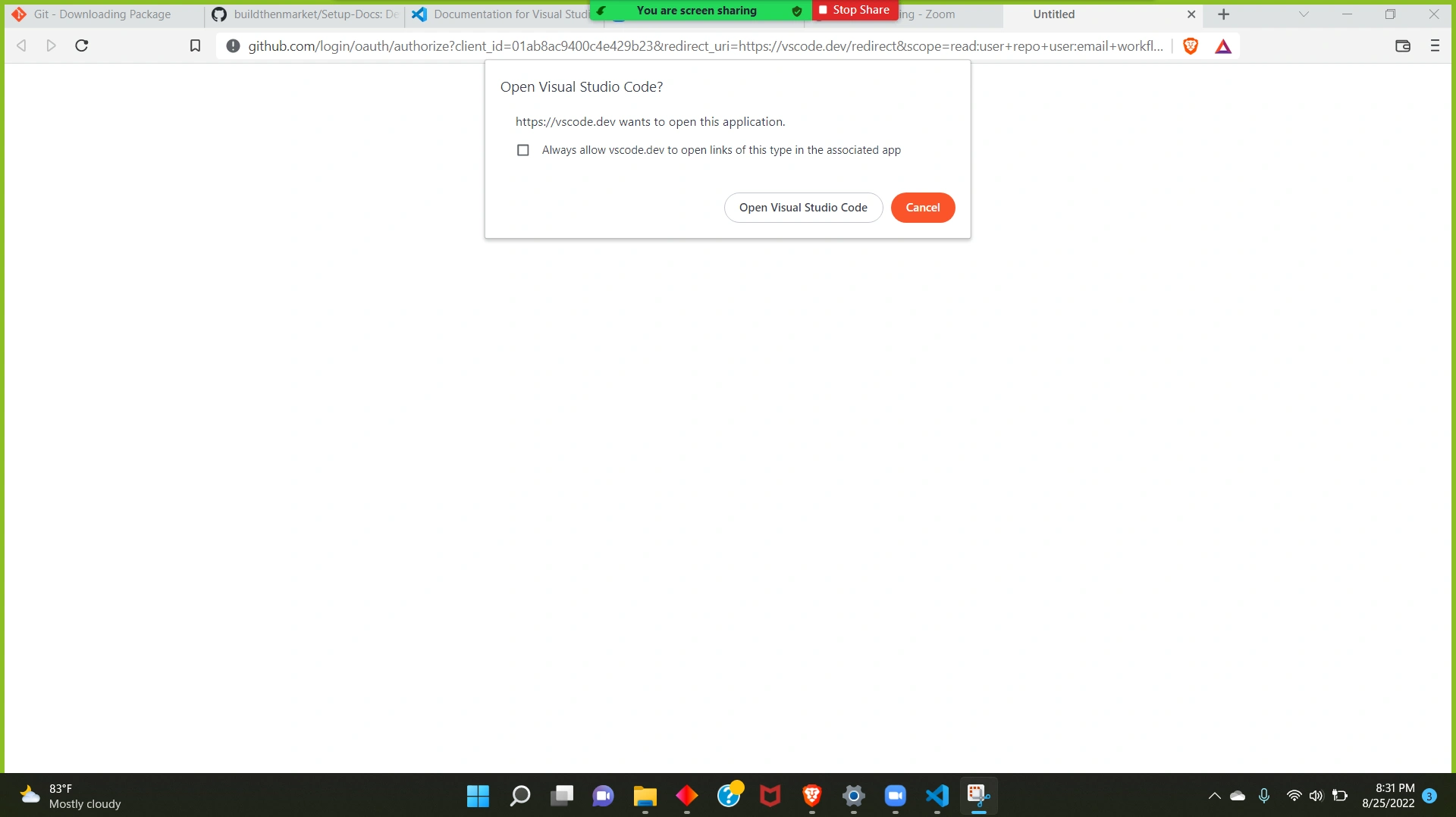 |
| CLICK OPEN | 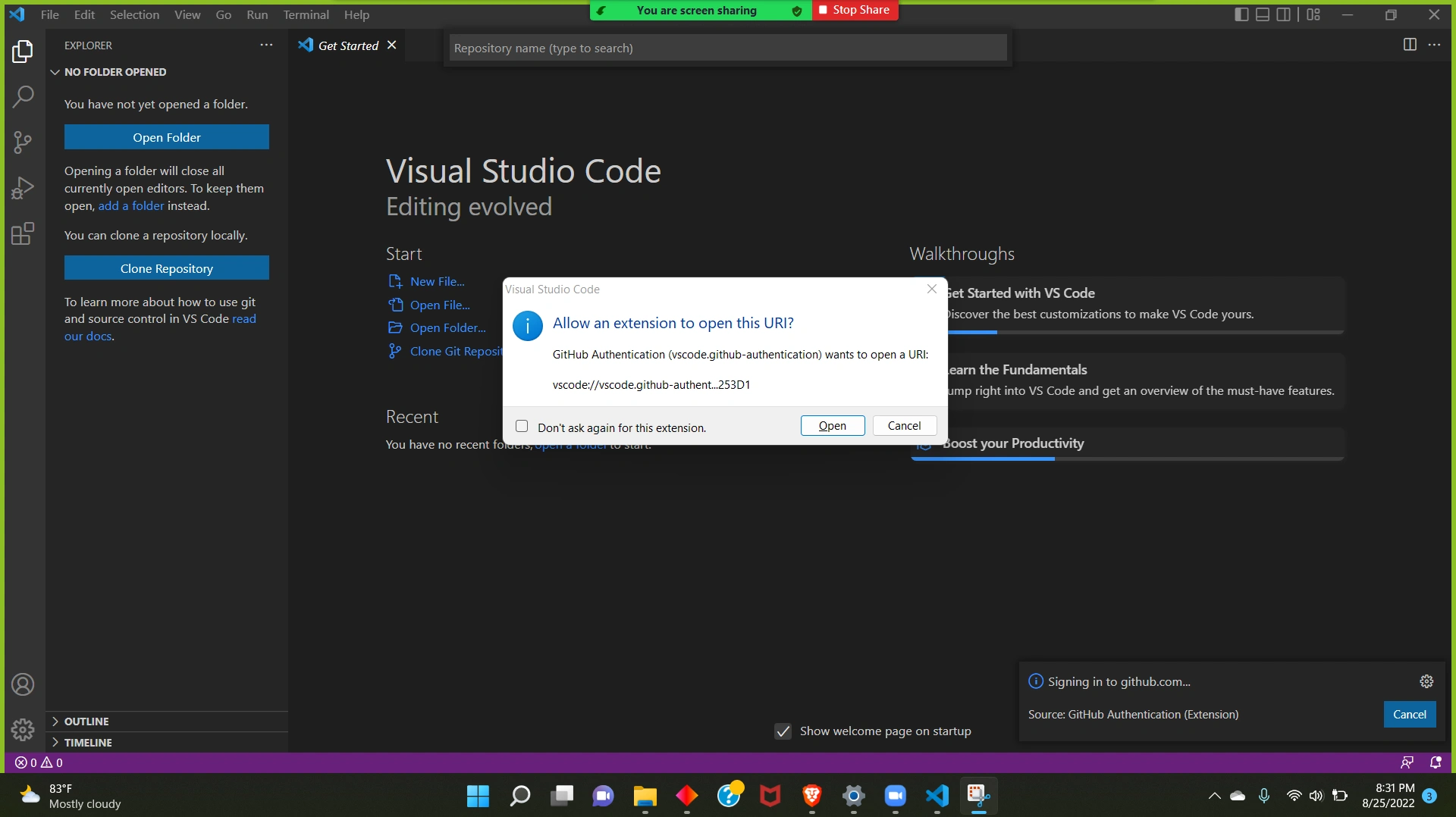 |
| SELECT FOLDER | 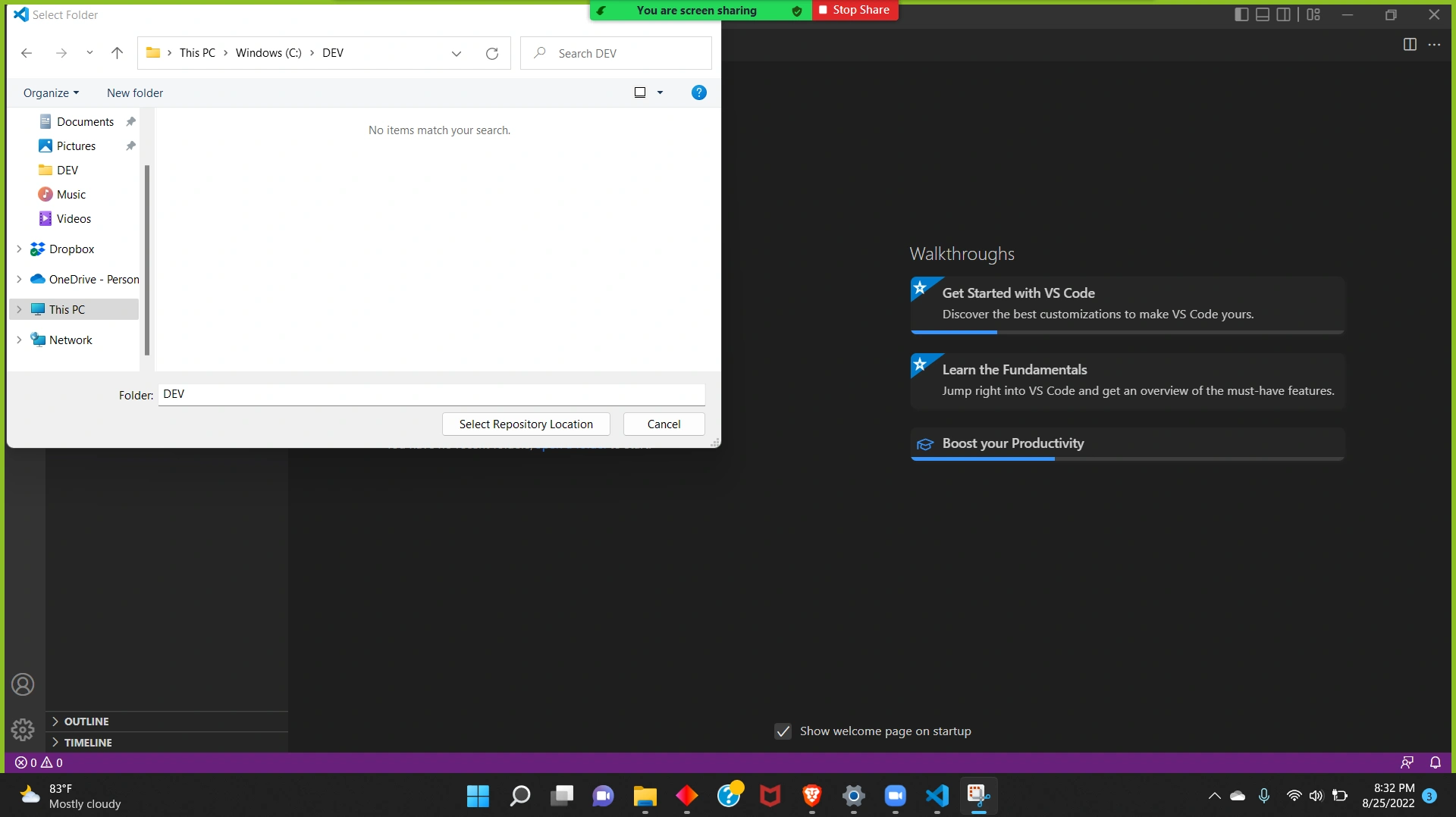 |
| LOGIN | 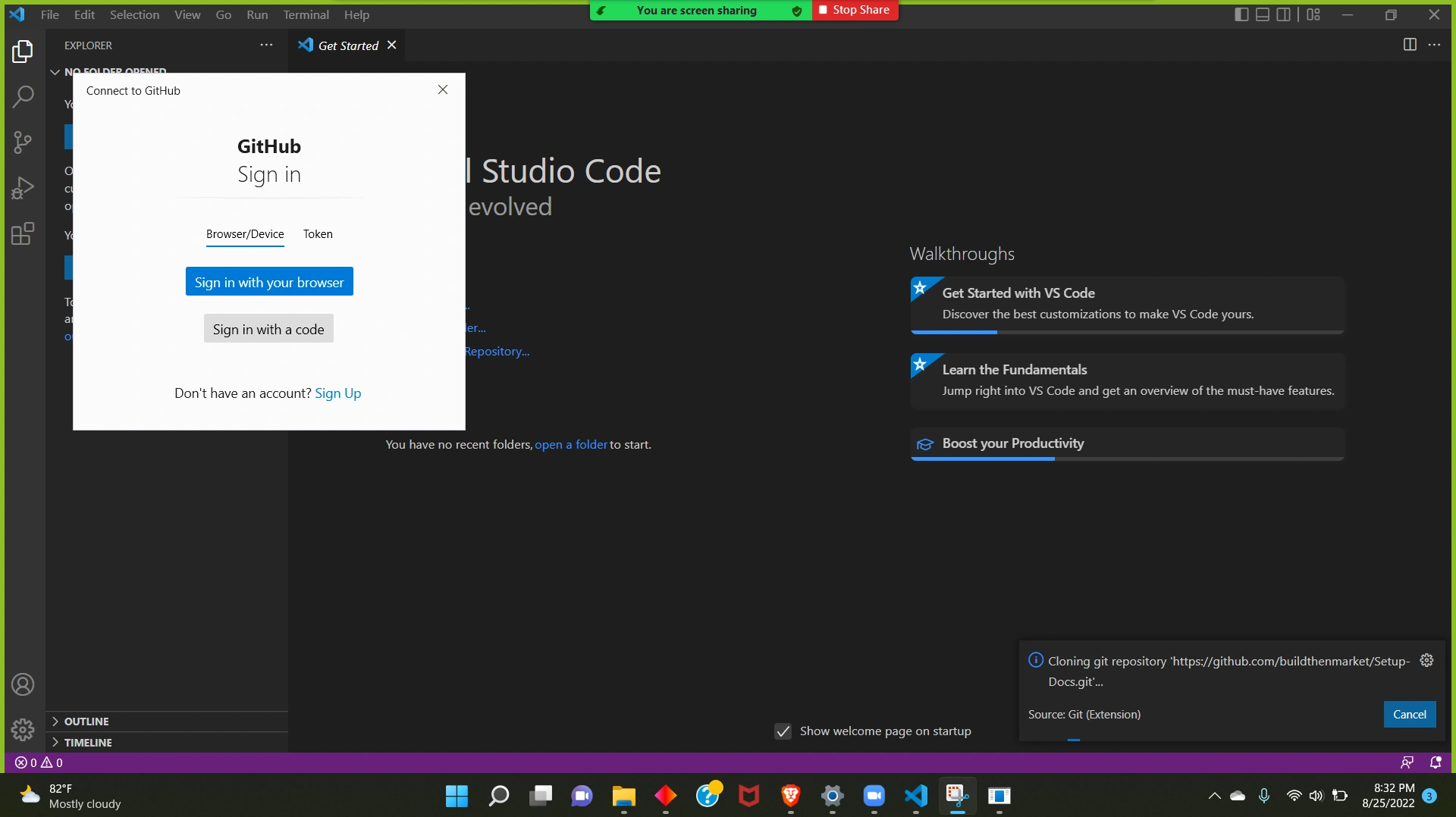 |
| CLICK TRUST | 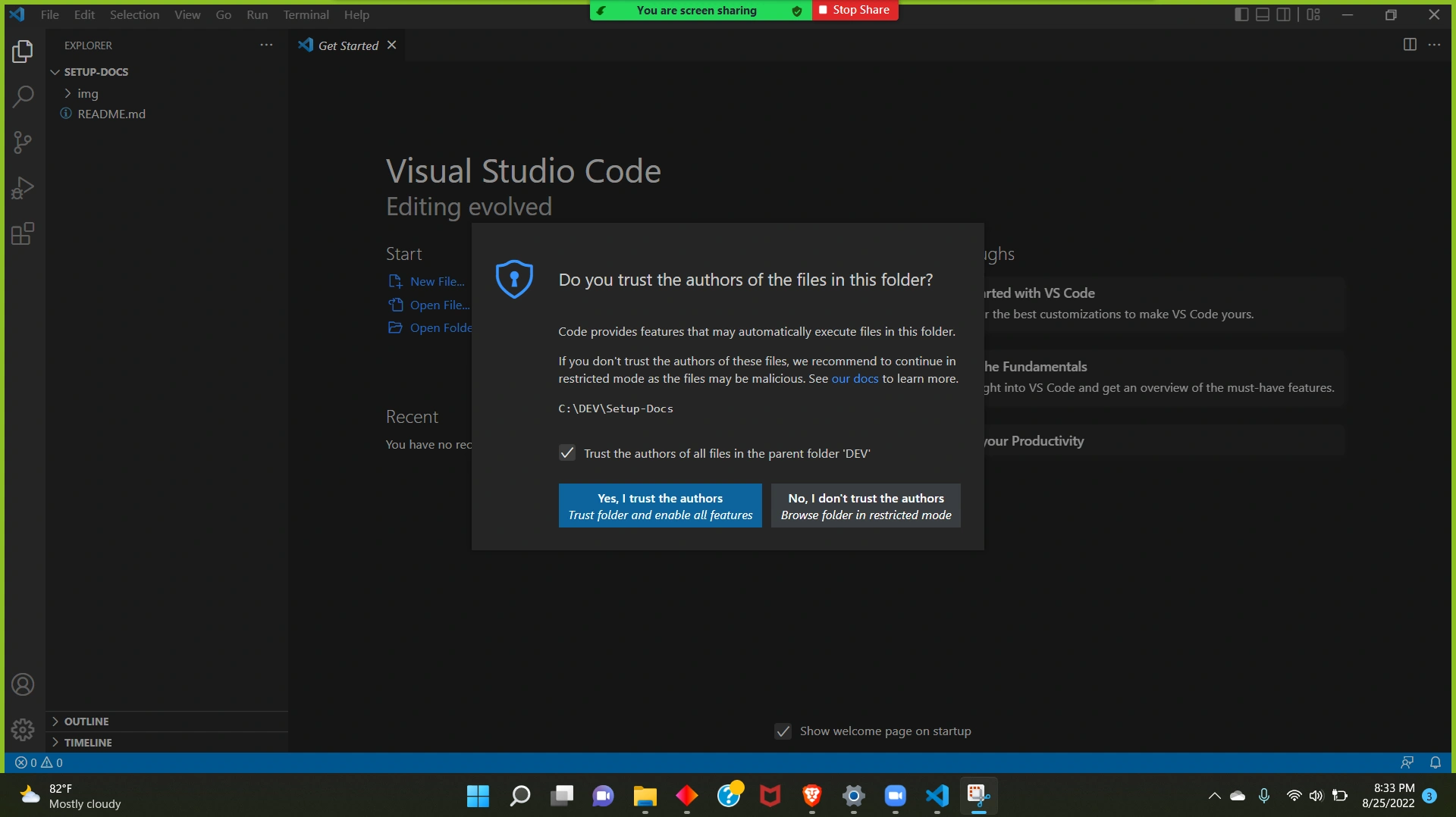 |
faster clone
git clone --depth 1
By providing an argument of --depth 1 to the clone command, the process will copy only the latest revision of everything in the repository. This can be a lifesaver for Git servers that might otherwise be overwhelmed by CI/CD automation.
How to clone a specific directory from a Git repository
git init
git remote add [REMOTE_NAME] [GIT_URL]
git fetch REMOTE_NAME
git checkout REMOTE_NAME/BRANCH -- path/to/directory
remote
what is the URL (git repository)
git remote -v
git Repo URL
git config --get remote.origin.url
Connect new repo to remote
git remote add origin <url>
Change Repo URL
git remote set-url origin https://dfdjkfa
push to multiple repositories
git remote set-url --add --push origin <...>
commit
commit message convention
Semantic Commits are commit messages with human and machine readable meaning, which follow particular conventions
Commit Lint
github.com/conventional-changelog/commitlint
git-tag | to mark a known point.
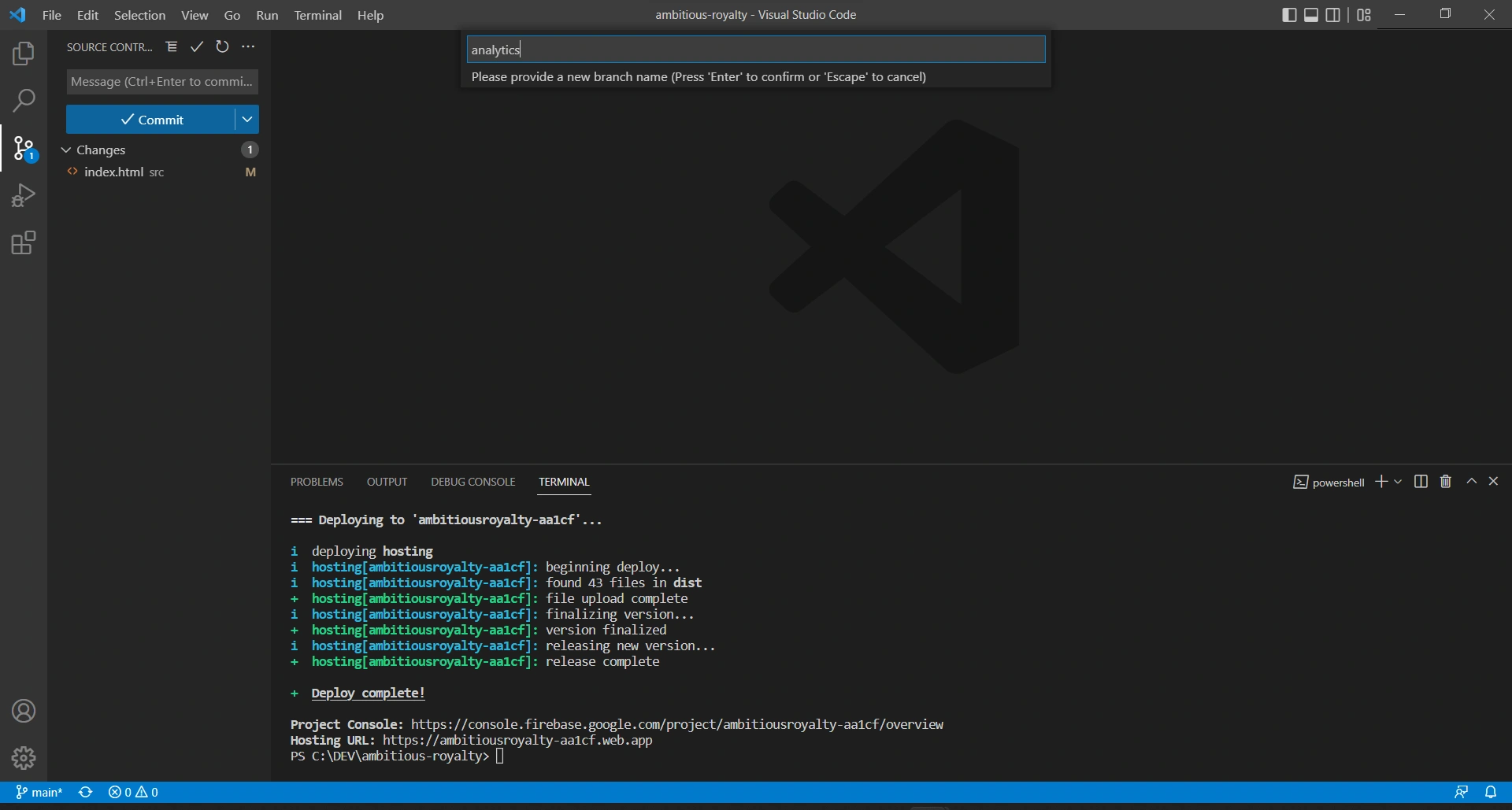
(Locating a Bad Commit) When subtle bugs get into our master branch
The git bisect command uses an efficient binary search algorithm to help us find a commit that we are looking for. It requires us to specify a bad commit and at least a good commit (can specify many good commits though to further narrow down the search). It then keeps bisecting the commits between the specified bad and good commits until it finds the first commit in the commit history that caused the deviation.
Change Commit Message
Step 1: Use the git rebase -i HEAD~n command to display a list of the last n commits in your default text editor.
git rebase -i HEAD~3
Step 2: Replace pick with reword before each commit message you want to change.
Step 3: update remote
git push --force
diff
git diff --shortstat
Prune
remove the local branches that are not on the remote any more.
git remote prune origin --dry-run
list of branches with their remote tracking branch can be retrieved with
git branch -vv
remove local branches that have deleted remotes
git fetch -p && for branch in `git branch -vv | grep ': gone]' | awk '{print \$1}'`; do git branch -D \$branch; done
Attributes
you can use Git attributes is telling Git which files are binary (in cases it otherwise may not be able to figure out) and giving Git special instructions about how to handle those files. For instance, some text files may be machine generated and not diffable, whereas some binary files can be diffed.
Flags
There are many flags available in the git version control system, and the most common ones will depend on your specific use case. However, here are some of the most frequently used git flags:
-m: Used with thegit commitcommand to specify the commit message inline, without opening a separate text editor.-a: Used with thegit commitcommand to automatically stage all changes before committing, saving you the step of usinggit addto stage individual files.-f: Used with thegit pushcommand to force a push to a remote repository, even if the branch you're pushing has diverged from the remote branch.--amend: Used with thegit commitcommand to modify the most recent commit, either by changing the commit message or adding additional changes.-d: Used with thegit branchcommand to delete a local branch.-b: Used with thegit checkoutcommand to create a new branch and switch to it in one step.--oneline: Used with various commands, such asgit log, to display output in a condensed format on a single line.--stat: Used with various commands, such asgit diff, to display a summary of changes made to files.--verbose: Used with various commands, such asgit add, to provide more detailed output.
These are just a few examples of common git flags. The best way to become familiar with them is to use them in practice and refer to the Git documentation as needed.
gitkeep file
In Git, directories that are empty cannot be tracked because Git primarily tracks files rather than directories. To overcome this limitation and include an otherwise empty directory in a Git repository, some developers create a file called ".gitkeep" (or sometimes ".keep" or "keep.me") within that directory. The file itself is typically empty, and its purpose is simply to ensure that the directory is not empty and can be tracked by Git.
Adding a ".gitkeep" file to an empty directory allows you to preserve the directory structure in your Git repository, even if it doesn't contain any files at the moment. This can be useful in cases where you want to maintain a specific directory hierarchy, placeholder directories, or when you anticipate adding files to that directory in the future.
It is important to note that the ".gitkeep" file itself is not a special file recognized by Git. Git does not treat it differently from any other file. Its significance is mainly a convention used by developers to indicate the intention of preserving an otherwise empty directory in the repository.
gitignore file
You typically put 2 kinds of things into .gitignore: generated content and secrets
https://www.toptal.com/developers/gitignore
Word file issues
One of the main issues with pushing Word files to a Git repository is the potential for conflicts. Word files are binary files, meaning that Git cannot track changes at a line-by-line level like it can with source code files. As a result, if two people make changes to the same Word file at the same time, there is a higher likelihood of conflicts arising when the changes are merged.
Another issue with pushing Word files to a Git repository is that they can be quite large, which can slow down the process of pushing and pulling changes from the repository. This can be especially problematic if the repository is being accessed by multiple people on slow or unreliable internet connections.
To avoid these issues, it is generally recommended to avoid using Git to track changes in Word files. Instead, it is better to use a different version control system that is better suited for tracking changes in binary files, such as Dropbox or OneDrive. Alternatively, you can consider converting Word files to a plain text format, such as Markdown, which can be tracked more easily with Git.
example
.firebase/

# various local configuration
nbproject/
.idea/
.DS_Store

# build artifacts
*tmp/
dist

# downloaded dependencies
node_modules/

# environmental variables, refer to .env.sample
.env

# Cordova
plugins/*
platforms/*

# VS Code
.vscode/*
typings/*
jsconfig.json