SHELL
https://cheat.sh/ https://www.nushell.sh/
Table of Contents
- Bash/Zsh
- Commands for System Information
- Commands for File Permissions
- Commands for Networking
- Commands for Archives and File Compression
- [Commands for ]
- Commands for Hardware Information
- Misc Commands
| Terms | Defintions |
|---|---|
| Operating System / Kernel | a microkernel (also known as μ-kernel) is the near-minimum amount of software that can provide the mechanisms needed to implement an operating system (OS). These mechanisms include low-level address space management, thread management, and inter-process communication (IPC) |
What is the difference between the terms shell and terminal?
In the context of technology, the terms "shell" and "terminal" are related but refer to different concepts.
-
Shell: Shell refers to a program that provides an interface for users to interact with an operating system. It acts as a command interpreter, allowing users to enter commands and execute them. The shell interprets the commands and communicates with the operating system to execute them. It provides features such as file management, process control, and scripting capabilities. Examples of popular shells include Bash (Bourne Again SHell), PowerShell, and Zsh.
-
Terminal: A terminal, also known as a terminal emulator or console, is a program or device that provides a text-based interface for users to interact with the shell. It emulates the behavior of a physical terminal and allows users to enter commands and receive text-based output from the shell. The terminal provides a window or console where users can type commands and view the results. It can be a command-line interface (CLI) or a graphical user interface (GUI) application. Examples of terminal applications include GNOME Terminal, macOS Terminal, and Windows Command Prompt.
To summarize, the shell is the program that interprets and executes commands, while the terminal is the program or device that provides the interface for users to interact with the shell. The terminal serves as a bridge between the user and the shell, allowing users to enter commands and view the output.
.bashrc & .bash_profile
Mac OS connect Global Packages
export PATH="\$HOME/.npm-global/bin:\$PATH"
npm link @angular/cli
-
open with default text editor
open ~/.bashrc -
open with vs code
code ~/.zshrc
.bashrc
- config file read by a shell that's both interactive and non-login
- shell startup file
.bash_profile
- executed when you login
- you might put important environment variables here like PATH
Bash / Zsh Syntax
- && for chaining tasks
- & for running tasks simaltaneously
zsh Configuration Files
- .zprofile (login shell)
- .zshenv (environment variables)
- .zshrc (interactive shell)
- .zlogin (login shell)
- .zlogout (when the shell exits)
Links
- https://medium.com/cameron-nokes/bash-commands-ive-found-most-useful-for-front-end-development-df66c8544c96#:~:text=The%20most%20useful%20bash%20commands%20for%20front%20end,...%208%20Kill%20runaway%20processes%20...%20More%20items
- https://scriptingosx.com/2019/06/moving-to-zsh-part-2-configuration-files/
- https://apple.stackexchange.com/questions/388622/zsh-zprofile-zshrc-zlogin-what-goes-where
Zsh setup
Zsh configuration
~/.zshrc, ~/.profile
Autocomplete
autoload -U compinit; compinit
common errors
“command not found” error messages at the command line
SOLUTION:
- the command syntax was entered incorrectly
- the command you are attempting to run is not installed
- the command was deleted, or, worse, the system directory was deleted or modified
- the users $PATH is incomplete, or $PATH has been erroneously set, reset, or cleared – this is the most common reason to see a ‘command not found’ message
nvm is not compatible with the npm config "prefix" option: currently set to "/usr/local"
SOLUTION:
Run npm config delete prefix or nvm use --delete-prefix v16.13.1 --silent to unset it.
/Users/savageceo/.zshrc:source:11: no such file or directory: /usr/local/opt/powerlevel10k/powerlevel10k.zsh-theme
Linux Commands As Keyboard Shortcuts
Command Description Ctrl + C Command to kill a running process. Ctrl + Z Command to stop a currently active process. Ctrl + W Command to cut a single word preceding the cursor. Ctrl + U Command to cut a line fragment preceding the cursor. Ctrl + K Command to cut a line fragment succeeding the cursor. Ctrl + Y Command to paste from clipboard. Ctrl + R Command to recall the last used command. Ctrl + O Command to execute the previously recalled command. Ctrl + G Command to exit command history. !! Command to execute a previously executed command.
Shell / Terminal Shortcuts
Copy to Clipboard
| pbcopy
example: copy all filenames in a directory to the clipboard
ls | pbcopy
Rename a directory
mv /home/user/oldname /home/user/newname
Bash shortcuts
mkdir \$(date %m-%d)-App
Open current directory
start .
Filepath to exe
which bash
delete from the cursor to the end of the line.
Ctrl+K
delete from the cursor to the beginning of the line.
Ctrl+U
Using ls to list directories and their total sizes
du -sh *
short version of:

du --summary --human-readable *
| Command | Description |
|---|---|
| ls | It is a list command and will display the directories and files visible under the present working directory |
| ls -R | Goes a step further to display or list files in sub-directories of the present working directory |
| ls -a | The argument -a in this list command helps list all the hidden files in the present working directory |
| ls -al | The argument -al in this list command gives a detailed list of the displayed files and directories with extra information such as size, permission, owner, etc. |
| cd or cd ~ | Takes you to the Home directory of your Linux operating system |
| cd .. | navigates you backwards to the parent directory of the current directory you are under. |
| cd | combine it with a target directory under the present working directory to navigate to it e.g cd Downloads |
| cd / | Takes you to the root directory of your Linux operating system |
| cat > filename | It will create a file called filename |
| cat filename | It will display the contents of a file called filename |
| cat file_1 file_2 > file_3 | Joins the content of file_1 and file_2 and copies the result to a newly created file_3 |
| mv file_random "defined file path" | It will move the file called file_random to the target file path or destination you will define. |
| mv file_name new_filename | It will rename the file called file_name to a new file name called new_filename |
| sudo | A command used by sudoer users to execute privileged commands applicable to a root user or superuser. |
| rm filename | It will delete a file called filename |
| man | Use it with a Linux command you do not understand to get help on how to use it. E.g man sudo |
| history | It will display a list of the previous Linux terminal commands you have executed under that specific session. |
| clear | It will clear your command-line interface if you feel it is too crowded. |
| mkdir directory_name | it will create a director called directory_name |
| rmdir my_directory | It will delete a directory called my_directory |
| mv | You can use it to rename a directory or a file |
| pr -x | It will divide or split a file to x defined columns. |
| pr -h | Use it to add a header to a target file. |
| pr -n | Uses Line numbers to denote a target user file. |
| lp -nc, lpr c | It is a printing function and in this case it will print c copies of a target file. |
| lp -d lp -P | Helps you identify the name of the printer you are using. |
| apt or apt-get | A Debian distro package command for installing system updates and package applications |
| mail -s 'mail_subject' -c 'cc-mail_address' -b 'bcc-mail_address' 'to-mail_address' | Use this command to send an email from the terminal. |
| mail -s "mail_subject" to-mail_address < attachment_filename | Use this command to also send an email from the terminal but this time with an attachment. |
Linux Commands for System Information
| Command | Description |
|---|---|
| uname -a | Displays basic system information like machine name and the supported operating system architecture. |
| uname -r | Outputs the kernel release information like the kernel version. |
| lsb_release -a | If you are using any Linux distro, this command displays its Distributor ID, Description, Release, and Codename. |
| uptime | Outputs how long your Linux system has been active together with the load average of this duration. |
| hostname | Outputs your system's hostname or the name you have given your Linux machine |
| hostname -I | Outputs the assigned IP address your system is currently using depending on the network connection it is under. |
| last reboot | A useful command for you to gauge how many times your system restarted. |
| date | Useful in displaying the current date and time. |
| cal | Outputs the present month's calendar. |
| w | Lets you know who or which systems are online especially if you are in a large network. |
| Table of Contents ⬆️ |
Linux Commands for File Permissions
| Command | Description |
|---|---|
| ls -l | Outputs the file type and the file permissions needed to access the target file. |
| chown root /u | In this command, the ownership of /u is transferred to the root user. |
| chown user:group file_name | The user and group privileges linked to file_name are changed. |
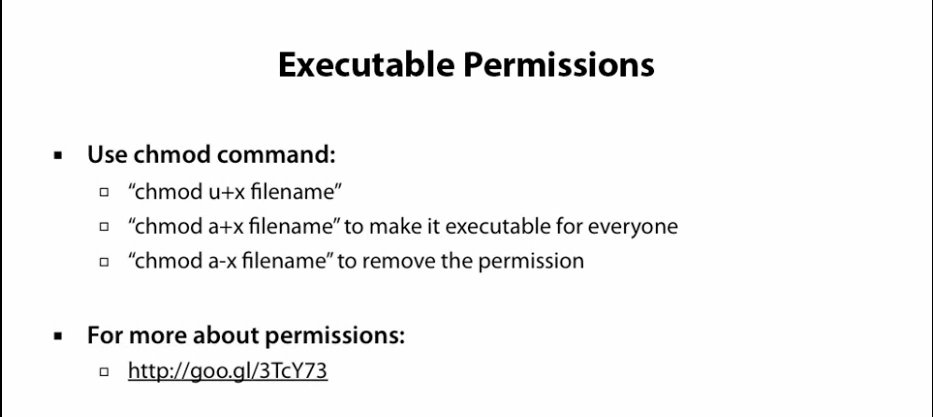
| chmod 777 [file_name] | Everyone access the file called file_name will have read, write, and execute permissions. |
| chmod 755 [file_name] | The owner of the file called file_name will have read, write, and execute permissions while other users will only have read and execute permissions. |
| chmod 766 [file_name] | The owner of the file called file_name has complete access to it while group and other users can only read and execute. |
| chown [user] [file_name] | The ownership of the file called file_name is assigned or changed to a new owner called user. |
| chmod -c -R | Assign a file the read, write, and execute permissions. |
| touch -a -t | Useful in creating or modifying a file timestamp. |
| chown -c -R | Useful in changing the ownership of an assigned or owned file. |
Linux Commands for Networking
| Command | Description |
|---|---|
| SSH username@ip_address or hostname | Enables SSH login or sign-in to a remote Linux machine by specifying the machine's username and IP address. |
| ping hostname | Useful in analyzing the responsiveness of a hostname connected to a network. |
| dir Helps you view files under a remote computer's active directory. | |
| cd "dir_name" | Access a directory called dir_name on a remote computer. |
| put filename | It will upload a file called filename from your local computer to a target remote computer. |
| get filename | It will download a file called filename from a specified remote computer to your local machine. |
| quit | Logout from a remote connection. |
| ping -c hostname | It will print a routing packet trace associated with the targeted hostname or IP address |
| ssh -i | Grants user access to openSSH client. |
| tcpdump | Used to dump network traffic. |
| Table of Contents ⬆️ |
Linux Commands for Archives and File Compression
| Command | Description |
|---|---|
| tar xvfz | Used for creating or extracting files with .tar or .tgz extensions. |
| gzip, gunzip, zcat filename | Used in creating, extracting. or viewing files with .gz extension |
| uuencode, uudecode | Used in creating or extracting files with .Z extension. |
| zip, unzip -v | Used in creating or extracting files with .Zip extension. |
| rpm | Used in creating or extracting files with .rpm extension. |
| bzip2, bunzip2 | Used in creating or extracting files with .bz2 extension. |
| rar | Used in creating or extracting files with .rar extension. |
| tar cf [compressed_filename.tar] [file_name] | This command creates an tar archive called compressed_filename for the file_name file. |
| tar xf [compressed_filename.tar] | This command extracts the tar archive called compressed_filename. |
| tar czf [compressed_filename.tar.gz] | This command compresses a tar file into a gzip archive. |
| Table of Contents ⬆️ |
Linux Commands for Installing Packages
| Command | Description |
|---|---|
| yum search [keyword] | Trace a package installation based on specific keywords. |
| yum install package.rpm | The use of a YUM package manager to install and configure a package. |
| yum info package | The use of the YUM package manager to find more information about a package before optionally proceeding with its installation. |
| rpm -i package.rpm | Using the RPM package manager to install a downloaded package. |
| yum remove package | Using the YUM package manager to uninstall or remove a package from your system. |
| tar zxvf sourcecode.tar.gz | |
| cd sourcecode | |
| ./configure | |
| make | |
| make install | Command sequence to install a package software that comes as a source code. |
| dnf install package.rpm | Using the DNF package manager to install a package software. |
| apt install package | Using the APT package manager to install a package software. |
| rpm -e package.rpm | Using the RPM package manager to remove or uninstall an rpm package |
| Table of Contents ⬆️ |
Linux Search Commands
| Command | Description |
|---|---|
| grep [pattern] [file] | Employs a specific pattern to search the contents of a file. |
| grep -r [pattern] [directory_name] | Recursively or repeatedly searches within a specified directory for a defined pattern match. |
| locate [name] | It will track and locate directories and files based on a name identity. |
| find [/path/to/folder/location] -name [a] | Traces a specific system directory location then queries the names of its files and folders based on a character match. In this case [a] |
| find [/path/to/folder/location] -size [+100M] | It will trace a system directory location and list the files within it that are bigger than 100 M in size. |
| find /home/FossLinux -name 'prefix*' | Traces a specified system path for files with a matching prefix. |
Linux Commands for SSH Logins
| Command | Description |
|---|---|
| ssh username@hostname | Connects you to a remote machine or server based on a valid username and hostname or IP address. |
| ssh host | Connects you to a specified host through the default port 22. |
| ssh -p [port] username@hostname | Connects you to a remote machine or server through a specified port. |
| telnet hostname | Uses telnet's default port 23 to connect you to a target hostname, remote machine, or server. |
| Table of Contents ⬆️ |
Linux Commands for File Transfers and Management
| Command | Description |
|---|---|
| find | This command is useful when you need to find a specific file |
| ls -a -C -h | Lists or displays the content of an active directory. |
| rm -r -f | Used to remove or delete active files and directories instances. |
| locate -i | Uses updateddb(8) to track and find files on your system. |
| cp -a -R -i | Used to copy directories or files from an active directory instance. |
| du -s | Give important information regarding the disk usage (storage space) on your Linux system. It is efficient when combined with the Sudo command. |
| file -b -i | Helps identify the type of file on your system. |
| mv -f -i | Used for moving directories or files to a different system path or location. |
| grep, egrep, fgrep -i -v | Useful in printing lines with a matching pattern. |
| scp file.txt server:/tmp | Uses secure copy command to copy file to a remote server. In this case the tmp folder |
Linux File and Directory Commands
| Command | Description |
|---|---|
| ls | It will list the files and directories under an active director path. |
| ls -a | Lists only active files, but in a long and detailed list. |
| pwd | reveals the present directory you are working under. |
| mkdir [dir_name] | It will create a directory with the specified name. |
| rm [filename] | It will delete a file with the specified name. |
| rm -r [directory_name] | It will delete a directory with the specified name. |
| rm -rf [directory_name] | It will recursively and forcefully delete a directory with the specified name. |
| cp filename1 filename2 | It will copy the contents of filename1 to filename2 |
| cp -r [directory1] [directory2] | It will recursively copy the content of directory1 to directory2 |
| mv filename1 filename2 | It will rename filename1 to filename2 |
Linux Commands for Disk Utilities and Usage
| Command | Description |
|---|---|
| df -h | Works with mounted systems to reveal their free and used space. |
| df -i | Works with mounted systems to reveal their free inodes. These inodes hold disk block location data an other attributes. |
| fdisk -l | Reveals disk information like types, sizes, and partitions. |
| du -ah | Outputs files and directories disk usage. |
| du -sh | Outputs your currently active directory's disk usage. |
| findmnt | Outputs the target mount point associated with all your file system. |
| mount device_path mount_point | Use this command syntax to mount a device. |
| mkfs -t -V | Use this command to create a new file system. |
| resize2fs | Used for updating a file system, especially after lvextend* |
| fsck -A -N | Used to check and repair a file system. |
Linux Commands for Environment Variables
| Command | Description |
|---|---|
| echo | $Variable_name Outputs the value of a defined variable on the terminal. |
| env | Outputs data related to all environment variables. |
| variable_name = variable_value | Use this command syntax to assign a variable name with a variable value. |
| Unset | Used to remove or get rid of a variable. |
export Variable = value | Used to assign an environment variable a new value. |
Set Environment Variables in Linux and Mac
Environment variables, are designed to be accessible to scripts or child processes and differ from shell variables by use of the export command.
Common environment variables in Linux and Mac
The following environment variables are not an exhaustive list, but are the most common between Linux and Mac:
- $PATH: A colon-separated list of directories for looking up binaries and scripts that don't need the full path in order to execute them, e.g. echo instead of /bin/echo as /bin is in $PATH
- $HOME: The user's home directory for the current shell
- $PWD: The directory location in the current shell
- $SHELL: The executable for the current shell, e.g. /bin/bash
- $HOSTNAME: The hostname of the current machine as it may appear in your local network
How to change and set environment variables
Changing an environment variable is no different from changing a shell variable:
export FAV_JEDI="Obi-Wan Kenobi"
echo "My favorite Jedi is \$FAV_JEDI"
# >> My fav jedi is Obi-Wan Kenobi

FAV_JEDI="Rey Skywalker"
echo "My favorite Jedi is now \$FAV_JEDI"
# >> My favorite Jedi is now Rey Skywalker
How to delete an environment variable
The unset command is used to remove a variable:
export FAV_DROID="R2-D2"
echo "My favorite droid is \$FAV_DROID"
# >> My favorite droid is R2-D2

unset FAV_DROID
echo "My favorite droid is \$FAV_DROID"
# >> My favorite droid is
How to list environment variables
The printenv command does exactly as it describes, printing out all environment variables available to the current shell.
printenv
You can combine printenv with grep to filter the list environment variables:
printenv | grep GIT
To output the value of a specific environment variable, you should use also printenv:
printenv HOME
Linux Commands for System Processes Management
| Command | Description |
|---|---|
| bg | Sends a running process to execute in the background. |
| fg | Sends a stopped or halted process to keep executing on the foreground. |
| top | Outputs all active processes details. |
| htop | It is an interactive process viewer command. |
| ps | Outputs a running process's status to a system user. |
| ps -ef | Outputs all active or executing processes on the Linux system. |
| ps -ef | grep process_name |
| ps PID | Outputs a running processes's status in reference to its process ID. |
| pidof | Reveals the process ID of a specified process. |
| kill PID | Kills a running process based on its process ID. |
Linux Commands for VI Editing
| Command | Description |
|---|---|
| vi | launch the VIM editor. |
| :q! | quit the editor without saving the implemented changes. |
| :wq | quit the editor and also make changes to the open file. |
| i | Takes the editor to insert mode and initiates a cursor. |
| a | An insert mode that enables the system user to write their input after a cursor. |
| A | An insert mode for writing at the end of the line. |
| ESC key | Used to exit the insert mode. |
| u | Undo Vim command for the last change. |
| U | Undo Vim command for an entire line. |
| o | Insert mode for opening a new line. |
Linux Commands for File Editors
| Command | Description |
|---|---|
| ex | Launches a basic editor. |
| vi | Launches visual editor. |
| nano | Launches the GNU nano editor. |
| view | Launches an editor in view or read-only mode. |
| emacs | Launches emacs, an extensible and customizable system editor. |
| sublime | Launches sublime text editor. |
| sed | launches stream editor. |
| pico | launches pico, a simple editor. |
Linux Commands for File Utilities
| Command | Description |
|---|---|
| tr -d | Command for translating or deleting a character. |
| uniq -c -u | Command for reporting or omitting repeated lines. |
| split -l | Command for splitting a file into segments. |
| wc -w | This command prints the number of bytes, words, and newlines on a specified file. |
| head -n | Outputs the first few contents of a specified file. |
| cut -s | removes or deletes a file's section. |
| diff -q | Command to compare files line by line. |
| join -i | Given that two files have a common field, this command will join the lines of these files. |
| more, less | Enables a system user to view the contents of a file, a single file page view at a time. |
| sort -n | Command to sort the lines within a text file. |
Linux Commands for Scripting
Once your skillset on using the Linux operating system improves with time, you might be inspired to scribble some scripts from your OS environment. These commands apply both to the scripting languages you might be familiar with and the scripting environment setup to make your Linux OS life as comfortable as possible. [table “49” not found /]
Linux Commands for Hardware Information
| Command | Description |
|---|---|
| dmesg | Outputs the kernel ring buffer messages. |
| cat /proc/cpuinfo | Outputs CPU information of your machine. |
| cat /proc/meminfo | Outputs Memory information of your machine. |
| free -h | Outputs both free and used machine memory info. |
| lshw | Outputs the system's hardware configuration information. |
| lsblk | Outputs the system's block devices information. |
| lspci -tv | Outputs the system's PCI devices. |
| lsusb -tv | Outputs the system's USB devices. |
| dmidecode | Outputs the system's hardware information on DMI/SMBIOS related to the BIOS. |
| hdparm -i /dev/disk | Outputs a specified disk data information. |
Linux Commands for Performance Monitoring and Statistics
| Command | Description |
|---|---|
| mpstat 1 | Outputs processor-related statistics. |
| vmstat 1 | Outputs statistical data related to the system's virtual memory. |
| iostat 1 | Outputs I/O (Input/Output) statistics. |
| lsof | Outputs all the system's open files. |
| lsof -u user | Outputs a list of all the files opened by a system user. |
| watch df -h | A command to output periodic system updates. |
| tail 100 /var/log/messages | Command to output the most recent 100 syslog messages. The Debian systems equivalent of this command is /var/log/syslog |
| tcpdump -i eth0 | An interface eth0-related command for outputting captured packets. |
| tcpdump -i eth0 'port 80' | Command for monitoring traffic through port 80 |
Linux Misc Commands
| Command | Description |
|---|---|
| date -d | Command to print formatted date. |
| ' | [command_name] A backquote to execute a specified command. |
| export | A command for assigning or removing an environment variable. |
| cal | Command to print a calendar. |
| expr | A command used to evaluate an expression. |
| bc | Launches a high-precision calculator shell. |
| pwd -P | Reveals the current system directory you are under. |