Developer Environment SETUP
Table of Contents
Git
| GIT Install (Windows) | Screenshot |
|---|---|
| open the website WINDOWS (GIT-SCM) | 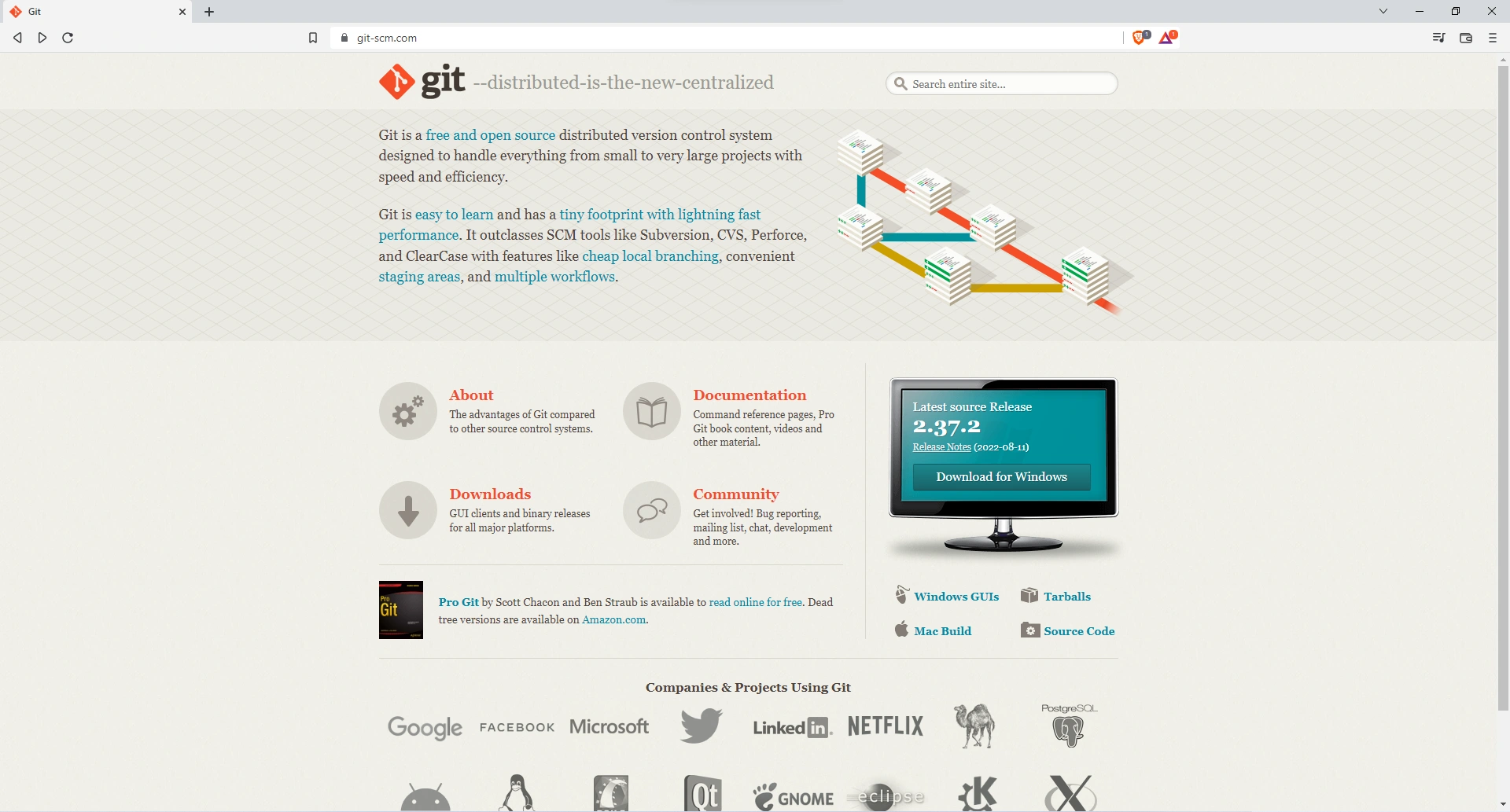 |
| CLICK Next (Keep Default) | 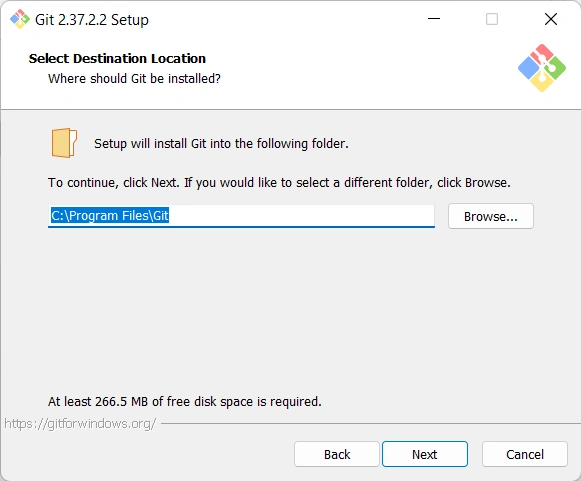 |
| CLICK Next (Keep Default) | 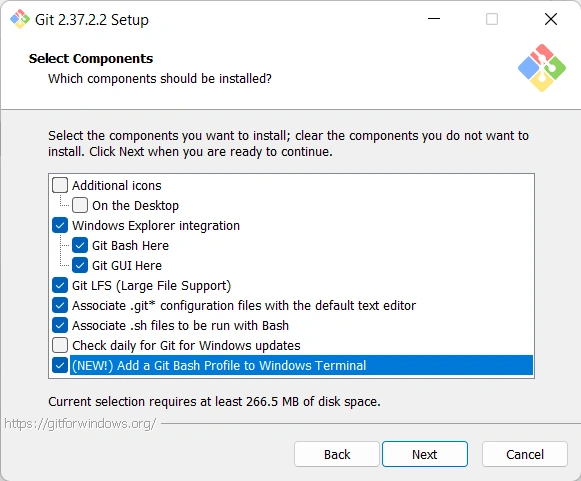 |
| CLICK Next (Keep Default) | 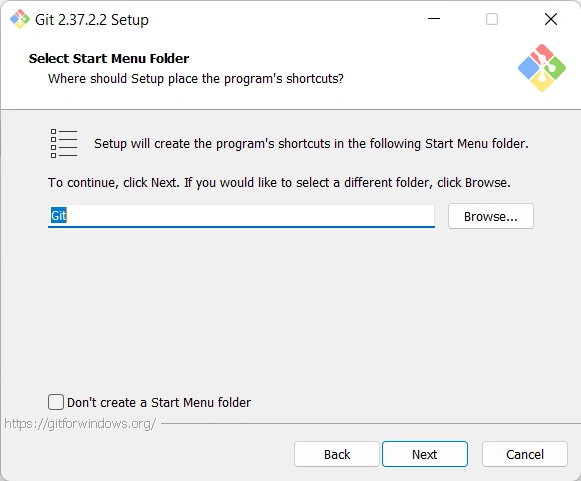 |
| _choose_ide | 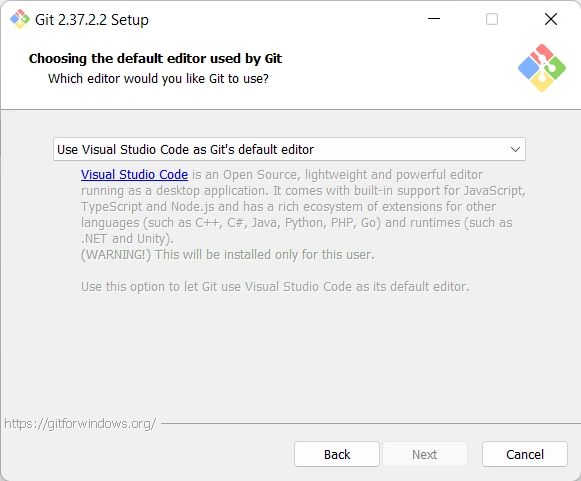 |
| PICK New Nomenclature | 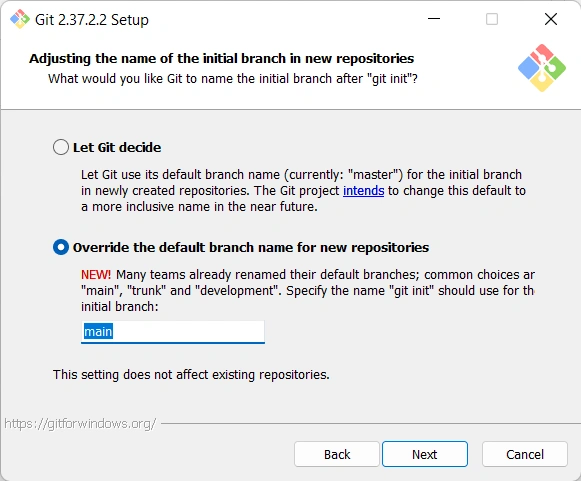 |
| _set_env_path | 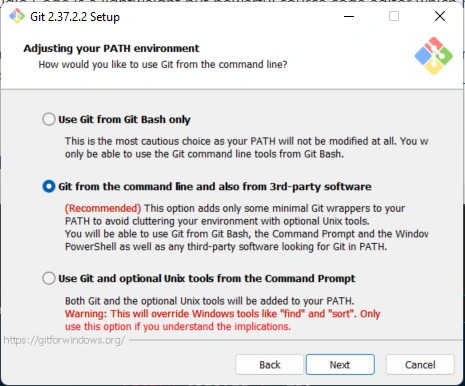 |
| CLICK Next (Keep Default) | 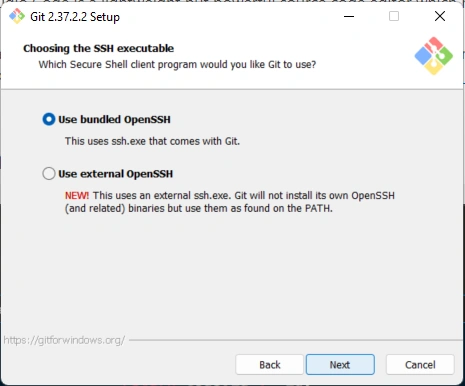 |
| CLICK Next (Keep Default) | 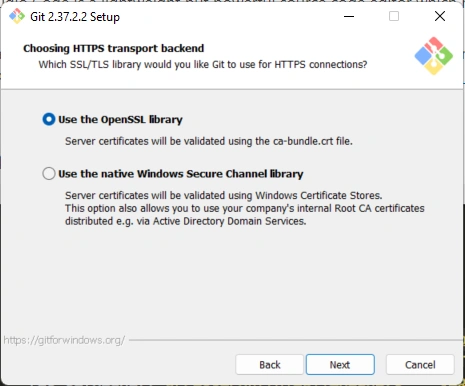 |
| CLICK Next (Keep Default) | 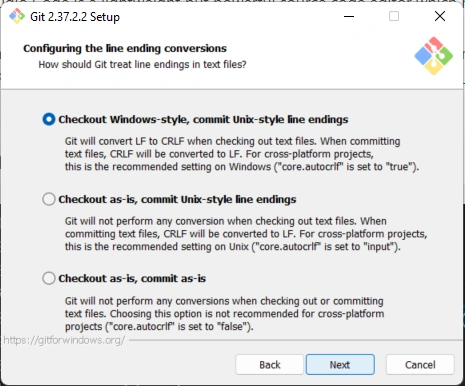 |
| CLICK Next (Keep Default) | 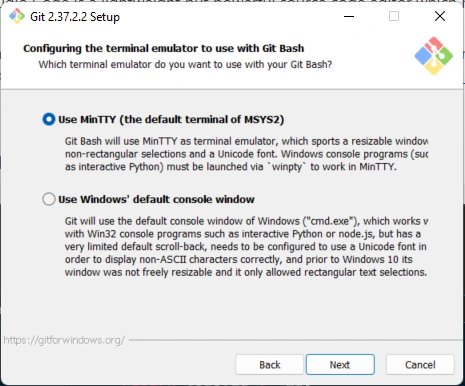 |
| CLICK Next (Keep Default) | 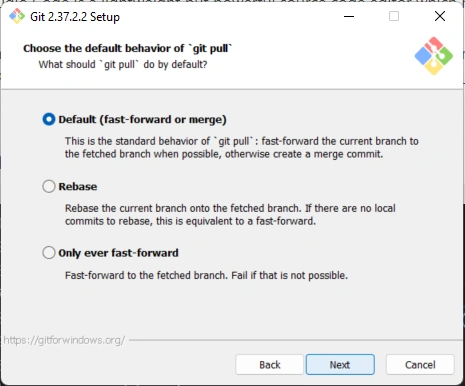 |
| CLICK Next (Keep Default) | 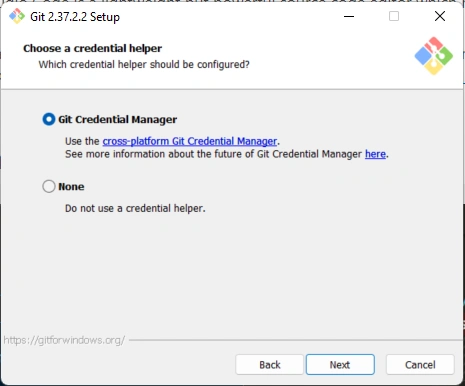 |
| CLICK Next (Keep Default) | 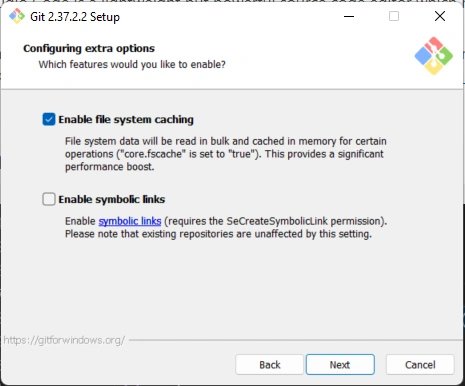 |
| CLICK Next (Keep Default) | 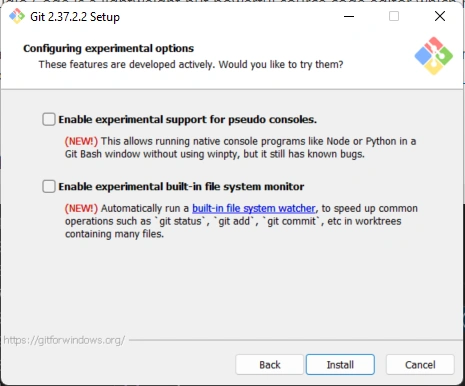 |
| finish | 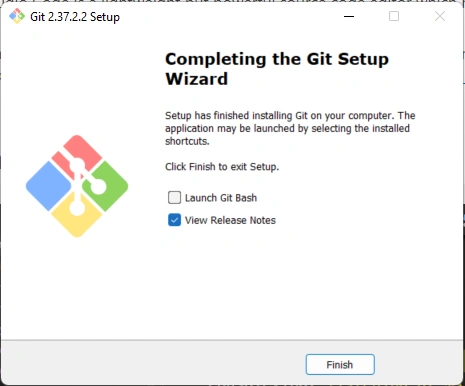 |
| fresh install login | 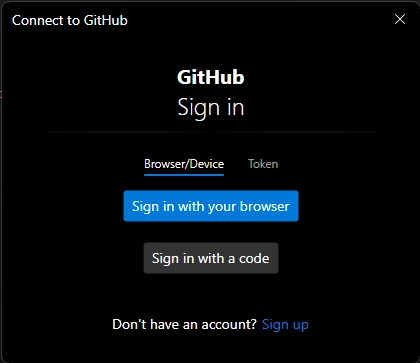 |
VSCode
| Windows Install | Directions |
|---|---|
| Download From Website | https://code.visualstudio.com/ |
| Download | 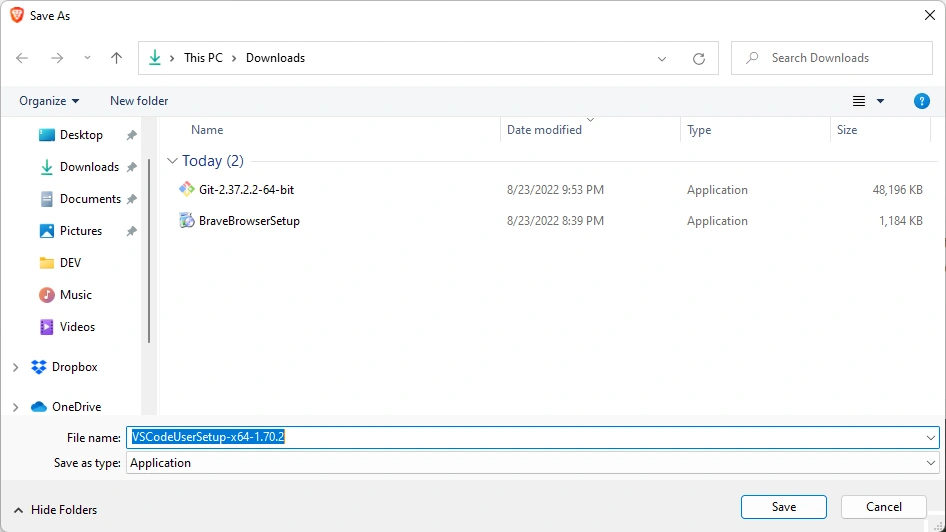 |
| accept_and_click_next | 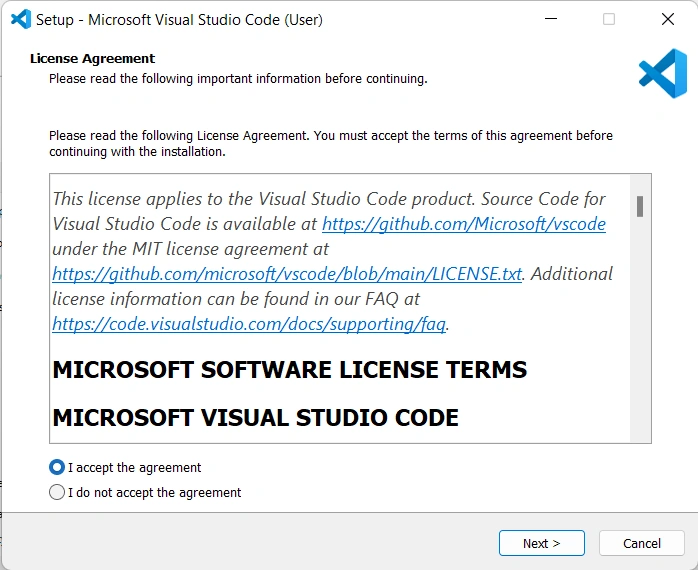 |
| next |  |
| click next | 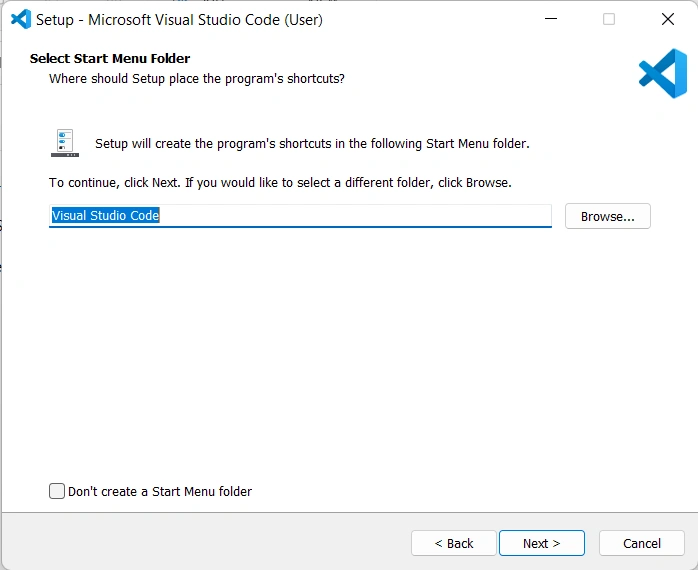 |
| optional | 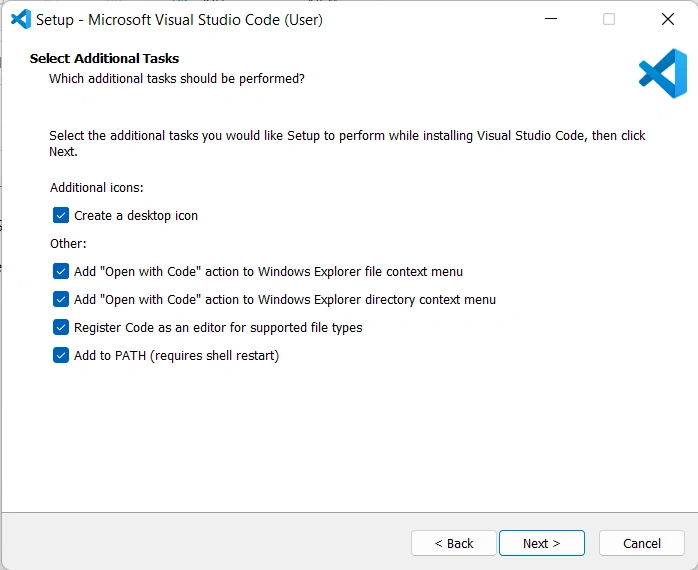 |
| click install | 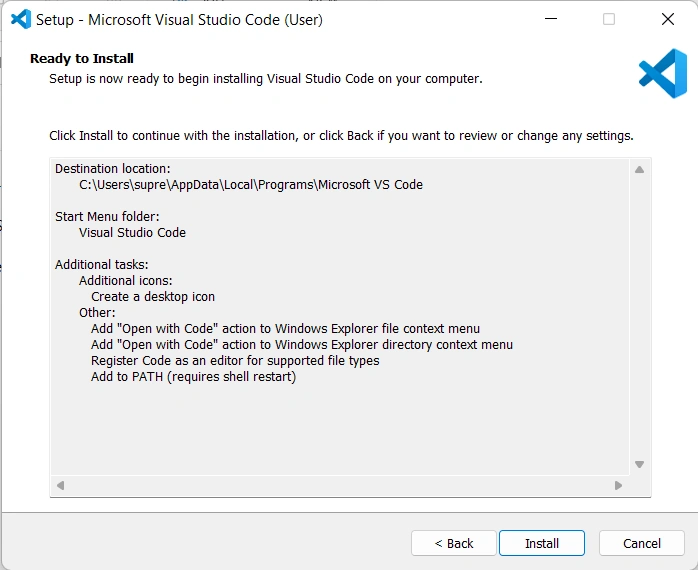 |
| done | 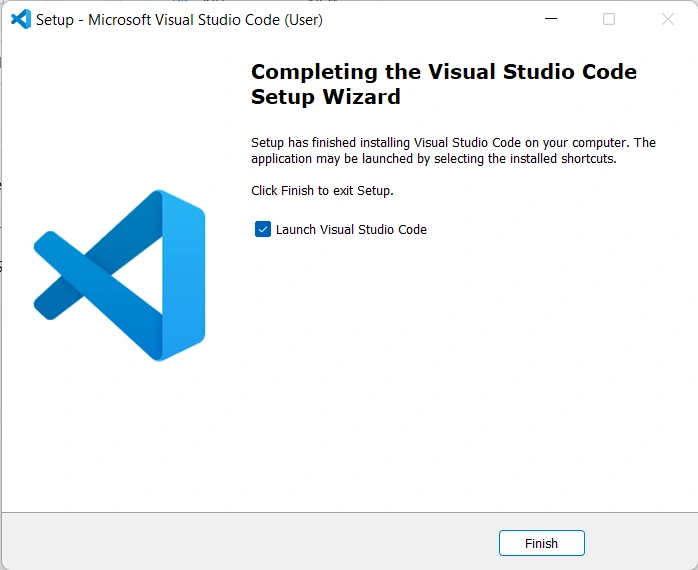 |
VSCode Linux Install
sudo snap install code --classic
NodeJS
INSTALL NODE VERSION BASED ON COMPATIBILITY CHART
figure out what version you need based on the angular version found in the package.json file
| Angular CLI version | Angular version | Node.js version | TypeScript version | RxJS version |
|---|---|---|---|---|
| 1.0.0-beta.17 (package name: angular-cli) | ~2.0.2 | ^6.9.5 | ~2.0.10 | ^5.0.3 |
| 1.0.0-beta.20-1 (package name: angular-cli) | ~2.1.2 | ^6.9.5 | ~2.0.10 | ^5.0.3 |
| 1.0.0-beta.22-1 (package name: angular-cli) | ~2.2.4 | ^6.9.5 | ~2.0.10 | ^5.0.3 |
| 1.0.0-beta.30 | ~2.3.1 | ^6.9.5 | ~2.0.10 | ^5.0.3 |
| 1.0.0-rc.4 | ~2.4.10 | ^6.9.5 | ~2.0.10 | ^5.0.3 |
| ~1.0.6 | >= 4.0.3 <= 4.1.3 | ^6.9.5 | ~2.2.2 | ^5.0.3 |
| ~1.1.3 | >= 4.0.3 <= 4.1.3 | ^6.9.5 | ~2.3.4 | ^5.0.3 |
| ~1.2.7 | >= 4.0.3 <= 4.1.3 | ^6.9.5 | ~2.3.4 | ^5.0.3 |
| ~1.3.2 | >= 4.2.6 <= 4.4.7 | ^6.9.5 | ~2.4.2 | ^5.0.3 |
| ~1.4.10 | >= 4.2.6 <= 4.4.7 | ^6.9.5 ^8.9.4 | ~2.4.2 | ^5.0.3 |
| ~1.5.6 | >= 5.0.5 <= 5.1.3 | ^6.9.5 ^8.9.4 | >= 2.4.2 <= 2.5.3 | <= 5.5.12 < 6.0.0 |
| ~1.6.7 | ~5.2.11 | ^6.9.5 ^8.9.4 | ~2.5.3 | <= 5.5.12 < 6.0.0 |
| ~1.7.4 | ~5.2.11 | ^6.9.5 ^8.9.4 | ~2.5.3 | <= 5.5.12 < 6.0.0 |
| ~6.0.8 | ~6.0.9 | ^8.9.4 | ~2.7.2 | ^6.0.0 |
| ~6.1.5 | ~6.1.10 | ^8.9.4 | ~2.7.2 | ^6.2.2 |
| ~6.2.9 | ~6.1.10 | ^8.9.4 | ~2.9.2 | ^6.2.2 |
| ~7.0.7 | ~7.0.4 | ^8.9.4 ^10.9.0 | ~3.1.6 | ^6.3.3 |
| ~7.1.4 | ~7.1.4 | ^8.9.4 ^10.9.0 | ~3.1.6 | ^6.3.3 |
| ~7.2.4 | ~7.2.15 | ^8.9.4 ^10.9.0 | ~3.2.4 | ^6.3.3 |
| ~7.3.9 | ~7.2.15 | ^8.9.4 ^10.9.0 | ~3.2.4 | ^6.3.3 |
| ~8.0.6 | ~8.0.3 | ^10.9.0 | ~3.4.5 | ^6.4.0 |
| ~8.1.3 | ~8.1.3 | ^10.9.0 | ~3.4.5 | ^6.4.0 |
| ~8.2.2 | ~8.2.14 | ^10.9.0 | ~3.4.5 | ^6.4.0 |
| ~8.3.29 | ~8.2.14 | ^10.9.0 | ~3.5.3 | ^6.4.0 |
| ~9.0.7 | ~9.0.7 | ^10.13.0 ^12.11.1 | >= 3.6.5 <= 3.7.7 | ^6.5.5 |
| ~9.1.15 | ~9.1.13 | ^10.13.0 ^12.11.1 | >= 3.6.5 <= 3.8.3 | ^6.5.5 |
| ~10.0.8 | ~10.0.14 | ^10.13.0 ^12.11.1 | ~3.9.4 | ^6.5.5 |
| ~10.1.7 | ~10.1.6 | ^10.13.0 ^12.11.1 | >= 3.9.4 <= 4.0.8 | ^6.5.5 |
| ~10.2.4 | ~10.2.5 | ^10.13.0 ^12.11.1 | >= 3.9.4 <= 4.0.8 | ^6.5.5 |
| ~11.0.7 | ~11.0.9 | ^10.13.0 ^12.11.1 | ~4.0.8 | ^6.5.5 |
| ~11.1.4 | ~11.1.2 | ^10.13.0 ^12.11.1 | >= 4.0.8 <= 4.1.6 | ^6.5.5 |
| ~11.2.19 | ~11.2.14 | ^10.13.0 ^12.11.1 | >= 4.0.8 <= 4.1.6 | ^6.5.5 |
| ~12.0.5 | ~12.0.5 | ^12.14.1 ^14.15.0 | ~4.2.4 | ^6.5.5 |
| ~12.1.4 | ~12.1.5 | ^12.14.1 ^14.15.0 | >= 4.2.4 <= 4.3.5 | ^6.5.5 |
| ~12.2.0 | ~12.2.0 | ^12.14.1 ^14.15.0 | >= 4.2.4 <= 4.3.5 | ^6.5.5 ^7.0.1 |
| ~13.0.4 | ~13.0.3 | ^12.20.2 ^14.15.0 ^16.10.0 | ~4.4.4 | ^6.5.5 ^7.4.0 |
| ~13.1.4 | ~13.1.3 | ^12.20.2 ^14.15.0 ^16.10.0 | = 4.4.4 <= 4.5.5 | ^6.5.5 ^7.4.0 |
| ~13.2.6 | ~13.2.7 | ^12.20.2 ^14.15.0 ^16.10.0 | = 4.4.4 <= 4.5.5 | ^6.5.5 ^7.4.0 |
| ~13.3.0 | ~13.3.0 | ^12.20.2 ^14.15.0 ^16.10.0 | = 4.4.4 < 4.7.0 | ^6.5.5 ^7.4.0 |
| ~14.0.0 | ~14.0.0 | ^14.15.0 ^16.10.0 | = 4.6.0 < 4.8.0 | ^6.5.5 ^7.4.0 |
NVM
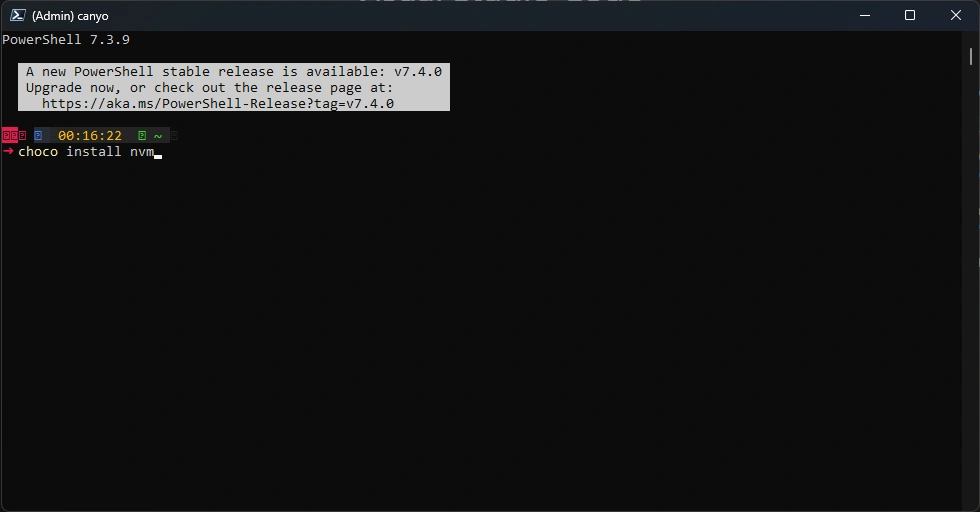
NVM how-switch-node-js-versions
| Install NVM | Screenshot |
|---|---|
1 Verify Node is not installed on local machine: run the followning shell command nvm OR nvm v AND node v OR node | 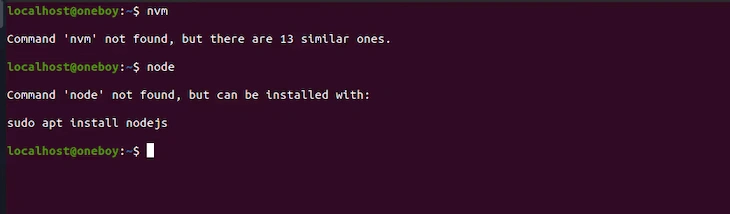 |
| 2 Download NVM (WINDOWS) | https://github.com/coreybutler/nvm-windows/releases |
| 3 Click NVM-SETUP.EXE | 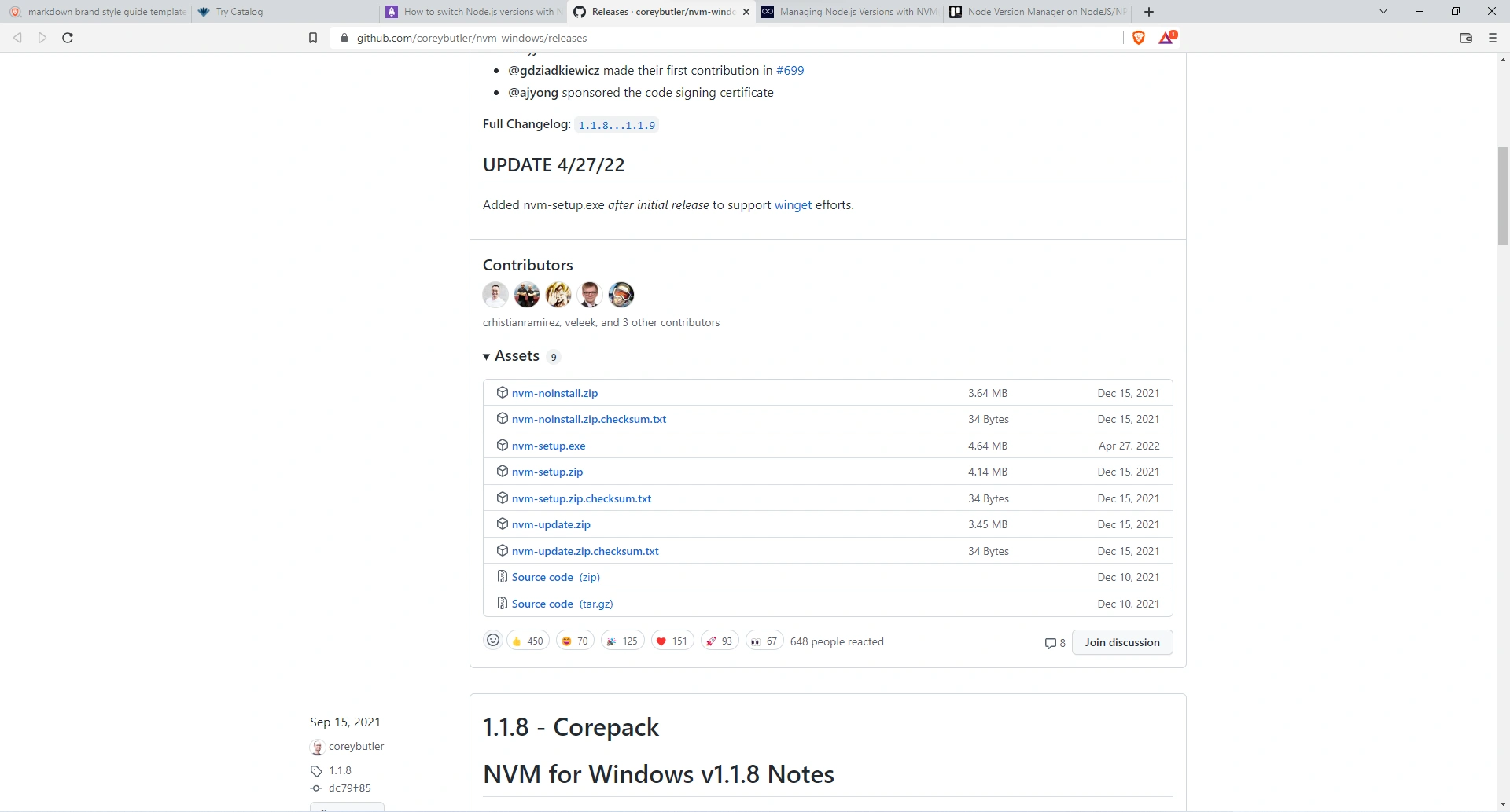 |
| 4 Accept License | 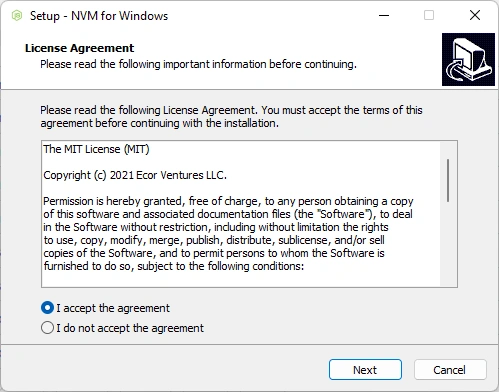 |
5 WINDOWS CHANGE default folder!! C:\nvm4w | 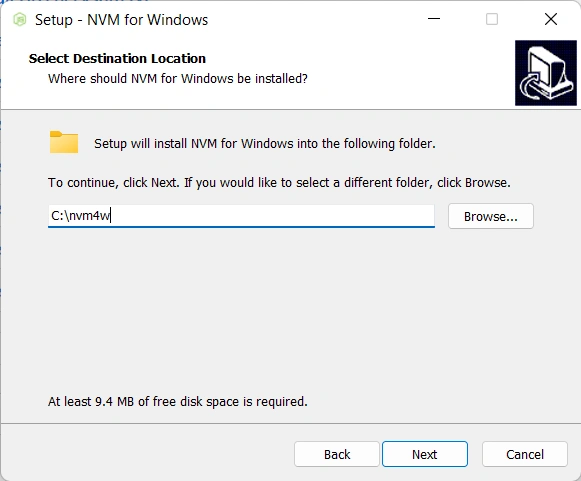 |
| 6 click next on the symlink folder | 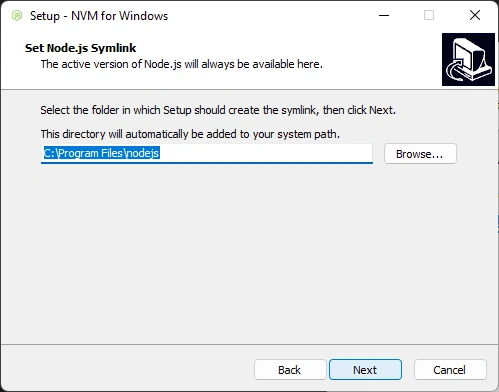 |
| 7 click Install | 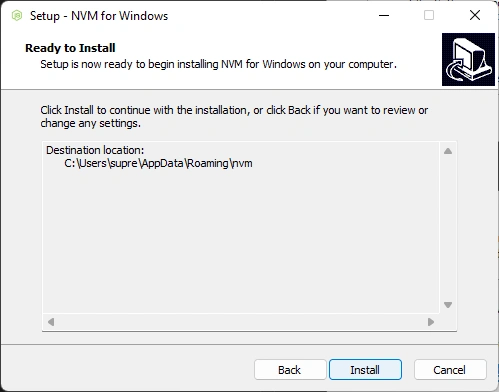 |
Install NodeJS (WINDOWS NVM VARIANT)
| NODE Windows Install | Screenshot |
|---|---|
Final Step, actually installing Node.JS check the chart from the top of the page against your package.json file. in this example we install node v12 nvm install 12 | 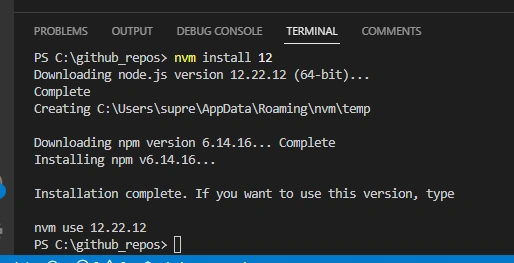 |
nvm use 12 | 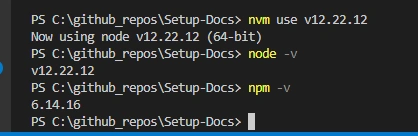 |
https://www.npmjs.com/package/@angular/cli
| NPM | Install |
|---|---|
| this command will download the javascript libaries needed to run the website on your computer using the package.json file | npm i |
Angular
| Angular Windows Install | Steps |
|---|---|
| run command to download | npm install -g @angular/cli@11 |
| done | 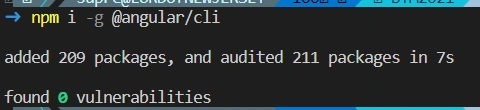 |
Firebase
| Firebase CLI Windows Install | Steps |
|---|---|
run command: npm i -g firebase-tool | 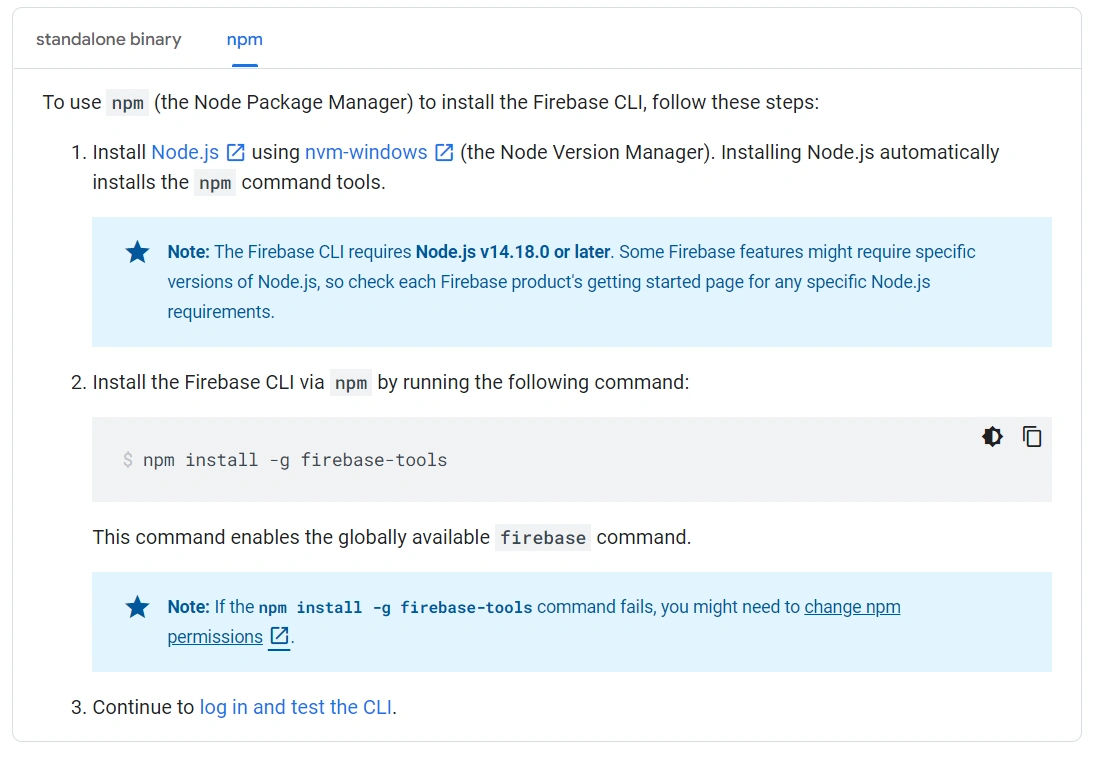 |
| doing | 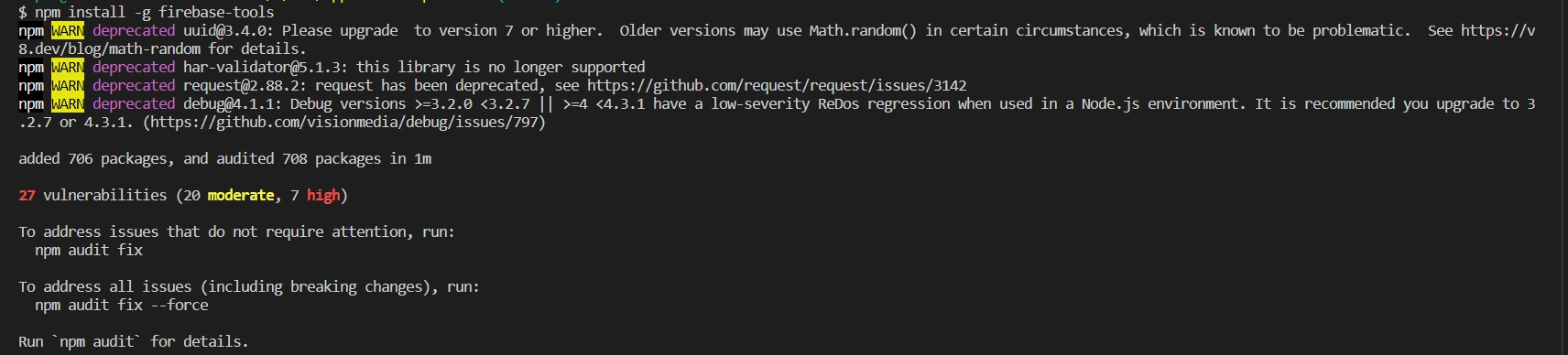 |
done
Running App
| Running App | Steps |
|---|---|
| run command in terminal | npm start |
| open web browser | http://localhost:4200/ |
Common Errors
BG-Gradient npm start / ng serve error**
| error running app | solution |
|---|---|
| ERROR | 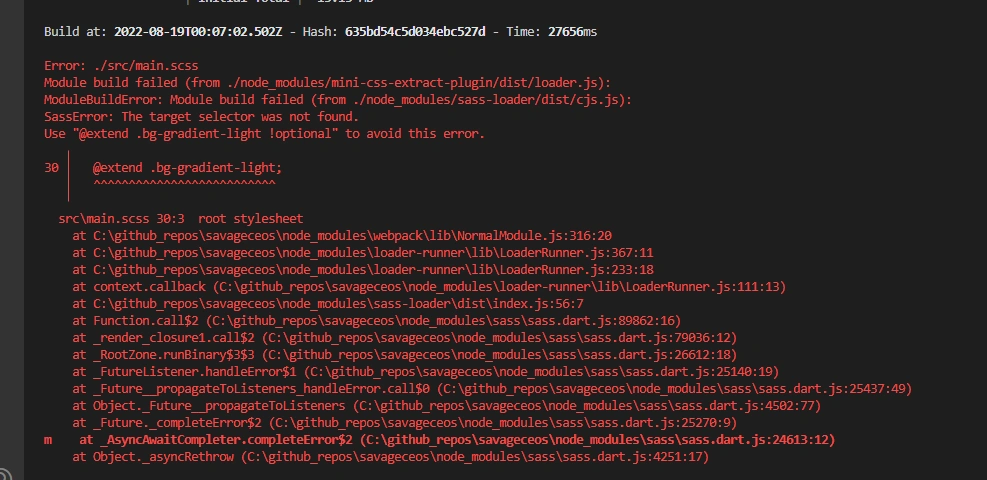 |
SOLUTION: go to node_modules\bootstrap\scss\_variables.scss | 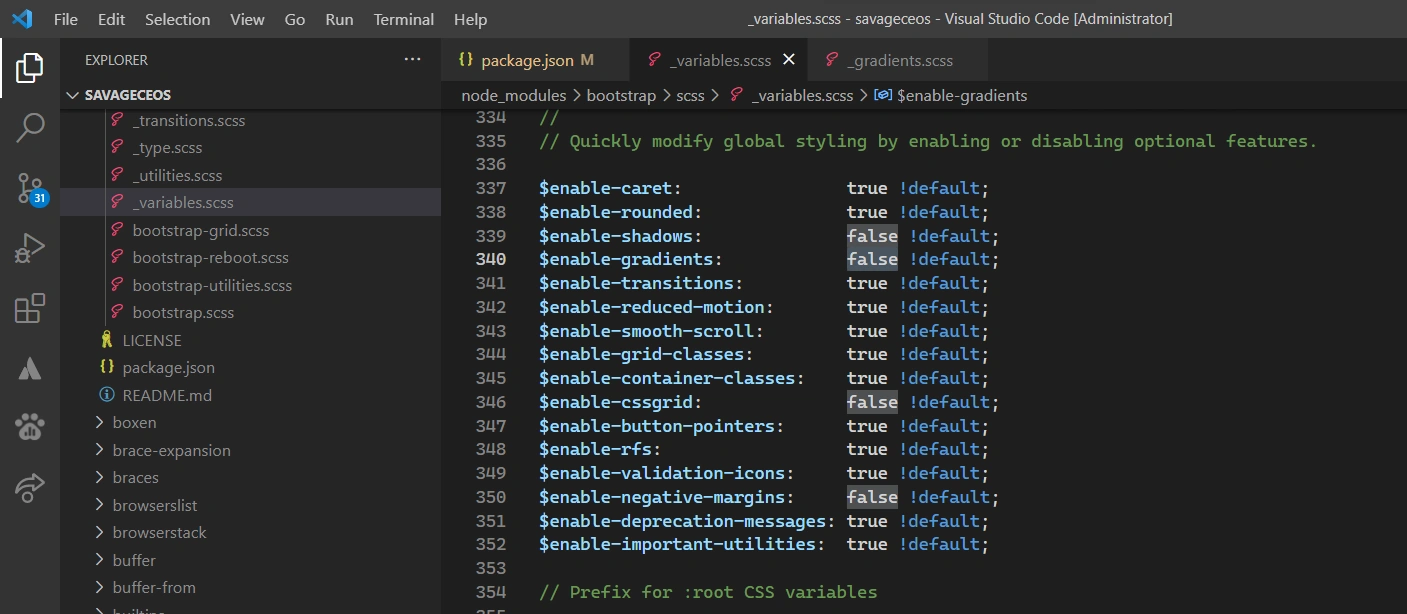 |
| _variables.scss >> change $enable-gradients to true | 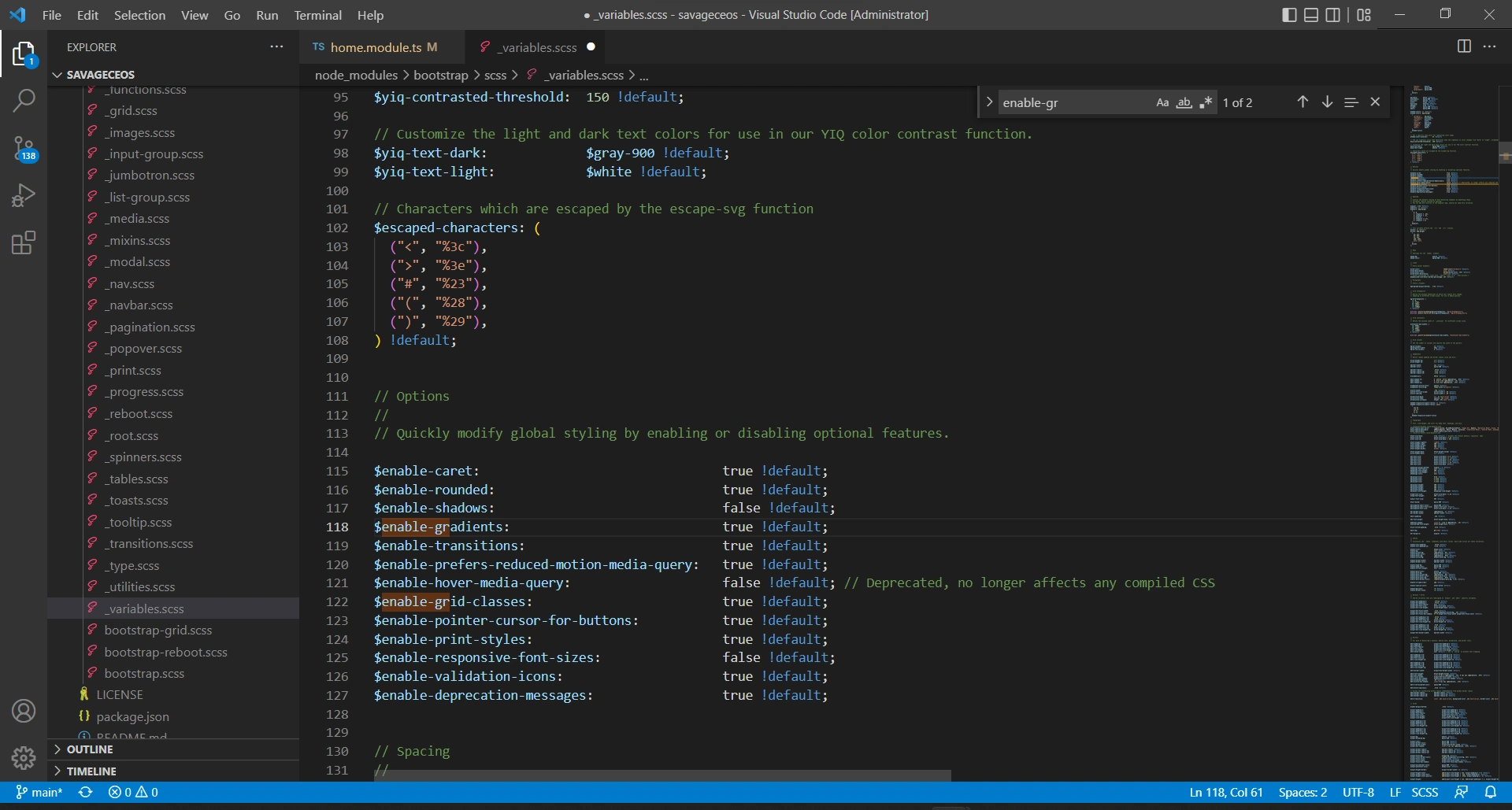 |