Package.json
transitive dependencies
transitive dependencies (dependencies of your dependencies) are not directly listed in your package.json.
Include/Exclude Package-Lock.json
In general, it is not recommended to include the package-lock.json file in your version control system (such as Git) because it is typically generated automatically based on your package.json file and can be different across different development environments.
Here are a few reasons why excluding package-lock.json from version control is often preferred:
-
Avoiding merge conflicts: The
package-lock.jsonfile is susceptible to frequent changes, especially when different developers are working on the project simultaneously. Including it in version control can lead to unnecessary merge conflicts. -
Reducing repository size: The
package-lock.jsonfile can be quite large, especially for projects with many dependencies. Excluding it from version control helps keep your repository size smaller and makes cloning and pulling faster for other developers. -
Ensuring consistent installations:
package-lock.jsonis primarily used to ensure consistent installation of packages across different environments. By excluding it from version control, each developer can generate their ownpackage-lock.jsonfile when they install dependencies, ensuring that their environment matches the project's requirements.
However, there are a few scenarios where including package-lock.json in version control might be appropriate:
-
Working in a controlled environment: If you are working in an environment where all developers are using the same package manager and dependencies, and you want to ensure exact consistency across all environments, including
package-lock.jsoncould be useful. -
Deploying to production: When deploying your project to production, it's often recommended to include the
package-lock.jsonfile to ensure that the exact same versions of dependencies are installed in the production environment.
In summary, excluding package-lock.json from version control is generally the best practice, but there may be specific circumstances where including it makes sense. Consider the needs of your development team and project when making this decision.
Fields
Engines
The "engines" field in the package.json file is typically required in the following scenarios:
Publishing a package: When you are publishing a Node.js package to a package registry like npm, specifying the required versions of Node.js and npm is important. This ensures that users who install your package have the compatible runtime environment. It helps prevent installation errors or unexpected behavior caused by incompatible versions.
Collaborative development: When working on a project with multiple developers, it's essential to have a consistent development environment. By specifying the required versions of Node.js and npm in the package.json file, all developers can ensure they are using compatible versions. This helps maintain consistency and avoids issues caused by differences in runtime environments.
Continuous Integration/Deployment (CI/CD): In a CI/CD pipeline, specifying the required versions of Node.js and npm ensures that the correct versions are used during the build, test, and deployment processes. This helps maintain a predictable and reproducible environment across different stages of the pipeline.
Hosting platforms: Some hosting platforms or deployment services use the "engines" field to determine the runtime environment for your application. For example, platforms like Heroku use the specified Node.js version to provision the appropriate runtime for your application.
In a package.json file, the "engines" field is used to specify the versions of Node.js and npm (Node Package Manager) that are required for the project. It allows you to define the minimum and maximum versions of Node.js and npm that your project can run on.
The "engines" field is typically used when you are developing a Node.js application or library and want to ensure that it is compatible with specific versions of Node.js and npm. By specifying the required versions, you can prevent the installation or execution of your project on incompatible environments.
Here's an example of how the "engines" field can be used in a package.json file:
{
  "name": "my-app",
  "version": "1.0.0",
  "engines": {
    "node": ">=10.0.0",
    "npm": ">=6.0.0"
  },
  "dependencies": {
    // ...
  }
}
In the example above, it specifies that the project requires Node.js version 10.0.0 or higher and npm version 6.0.0 or higher. When someone tries to install or run the project, npm will check if the installed versions of Node.js and npm meet the specified requirements. If the versions don't match, npm will display a warning or an error message.
By using the "engines" field, you can communicate the required runtime environment to other developers or users who want to use your project. It helps ensure that your project is executed on compatible versions of Node.js and npm, potentially avoiding compatibility issues or unexpected behavior.
author
"author": "Your Name <`your@email.com`> (Your Business Name, https://www.yourbusiness.com)"
private
The "private" field in a package.json file is used to indicate whether a package should be published to a package registry or not. When the "private" field is set to true, it means that the package is intended for private use only and should not be published.
Here's an example of a package.json file with the "private" field set to true:
{
  "name": "my-private-package",
  "version": "1.0.0",
  "private": true,
  "dependencies": {
    "some-package": "^1.0.0"
  }
}
In this example, the "my-private-package" is marked as private, and it won't be published to a package registry when using a command like npm publish or yarn publish.
Setting a package as private is useful when you're working on a project that has multiple packages/modules, and some of them are not meant to be published independently. It helps prevent accidental publishing of internal or proprietary code.
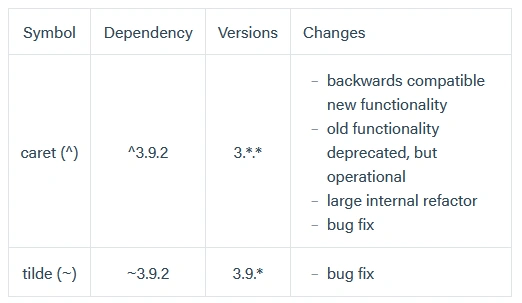
What is the difference between tilde(~) and caret(^)?
In the simplest terms, the tilde matches the most recent minor version (the middle number). ~1.2.3 will match all 1.2.x versions but will miss 1.3.0.
The caret, on the other hand, is more relaxed. It will update you to the most recent major version (the first number). ^1.2.3 will match any 1.x.x release including 1.3.0, but will hold off on 2.0.0.
To allow a npm dependency to get updated to the latest PATCH-version, you can prefix the dependency’s version with the tilde-character (~).
"some-package-name": "~1.3.8" allows updates to any 1.3.x version.

homepage
In a package.json file, the homepage property is used to specify the URL of a project's homepage or landing page. It is commonly used in JavaScript projects, particularly those built with tools like Create React App, to define the URL where the project will be hosted or deployed.
Here's an example of how the homepage property can be used in a package.json file:
{
  "name": "my-project",
  "version": "1.0.0",
  "homepage": "https://www.example.com/my-project",
  "dependencies": {
    // Dependencies here
  },
  // Other properties...
}
The value of the homepage property should be a valid URL, typically pointing to a web server where the project is hosted. When deploying or building the project, tools like Create React App will use the homepage value to generate appropriate URLs for assets, such as JavaScript and CSS files.
It's worth noting that the homepage property is not mandatory and is mainly used for projects that will be deployed or published online. If you're developing a project that doesn't have a dedicated homepage or if you're not planning to deploy it to a specific URL, you can omit the homepage property from your package.json file.