Git Branching
Table of Contents
Create a branch to do your work. This way it does not effect other team members or the live production site
effective strategies for using branches in source code management to facilitate collaboration among developers and streamline the path to production releases. Key points include the emphasis is on frequent integration and maintaining a healthy mainline to improve collaboration and reduce the risks associated with merging code.
-
Branching Basics: Branches allow multiple developers to work on code simultaneously without conflicts. However, merging these branches back into the main codebase can be challenging.
-
Mainline and Healthy Branch: A "mainline" is the primary shared branch that represents the current state of the product. Keeping this branch "healthy" means ensuring it builds successfully and passes tests with minimal bugs.
-
Integration Patterns: The article outlines various integration strategies, including:
-
Mainline Integration: Developers pull from the mainline, merge changes, and push back.
-
Feature Branching: Each feature is developed in its own branch and integrated into the mainline only when complete.
-
Continuous Integration: Frequent integration of small changes to minimize conflicts and integration challenges.
-
-
Integration Frequency: The frequency of integrations significantly affects team performance. Higher-frequency integrations reduce the complexity of merges and help identify conflicts early.
-
Other Patterns: The article also explores additional patterns such as release branches, hotfix branches, and collaboration branches, as well as branching policies like Git-flow and Trunk-Based Development.
Branch Naming Conventions
give a meaningful name 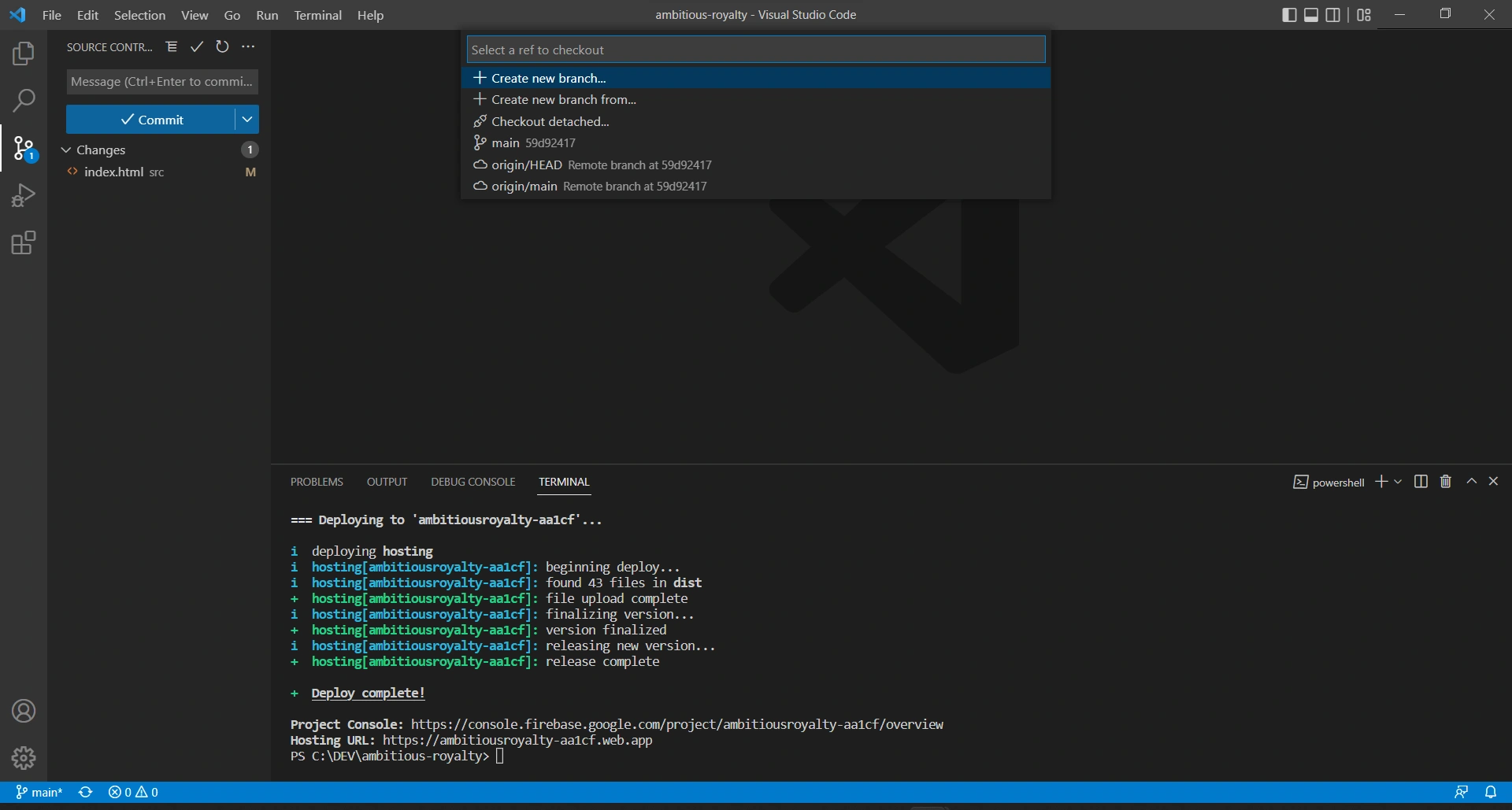
-
fix/feature
-
feature/bug
-
refactor
git switch - A safer way to change branches
Before Git 2.23, git checkout was the main command for switching branches, but it did much more than that. You could use it to restore files, create branches, or check out specific commits. This made it powerful but potentially confusing - especially when you just wanted to switch branches without touching your files.
That's why Git 2.23 introduced git switch as a more focused alternative for branch operations. With git switch, you can focus solely on branch management:
Move to another branch
git switch feature-branch
Create and switch to a new branch
git switch -c new-branch
This clarity reduces the risk of accidentally overwriting files or making unintended changes. If you've ever hesitated to use git checkout for fear of doing something wrong, git switch simplifies the process.
Branch commands
Commits on branch
git log master..branch_name
opens a tool
gitk my-personal-branch ^develop
List Remote Branches
git branch -a
checkout Remote Branch
git checkout -b origin/path_to/branch
checkout a single file -- file-path/file-name
Selectively merge or pick changes from another branch
git checkout source_branch -- file_paths...
Checkout the path(s) from the branch you want to merge
git checkout feat/DMAU-571 -- app/assets/styles/utils/
Rename branch
git branch -m <old_name> <new-name>
delete branch
The -d option stands for --delete, which would delete the local branch, only if you have already pushed and merged it with your remote branches.
git branch -d branch_name
The -D option stands for --delete --force, which deletes the branch regardless of its push and merge status, so be careful using this one!
git branch -D branch_name