Android OS
Table of Contents
Setup Android Phone (Mac)
export ANDROID_SDK_ROOT=\$HOME/Library/Android/sdk

export ANDROID_HOME=\$HOME/Library/Android/sdk (deprecated)

# avdmanager, sdkmanager
export PATH=\$PATH:\$ANDROID_SDK_ROOT/tools/bin

# adb, logcat
export PATH=\$PATH:\$ANDROID_SDK_ROOT/platform-tools

# emulator
export PATH=\$PATH:\$ANDROID_SDK_ROOT/emulator

# apksigner, zipalign
export PATH=\$PATH:\$ANDROID_SDK_ROOT/build-tools/\\${version}
Supported Versions
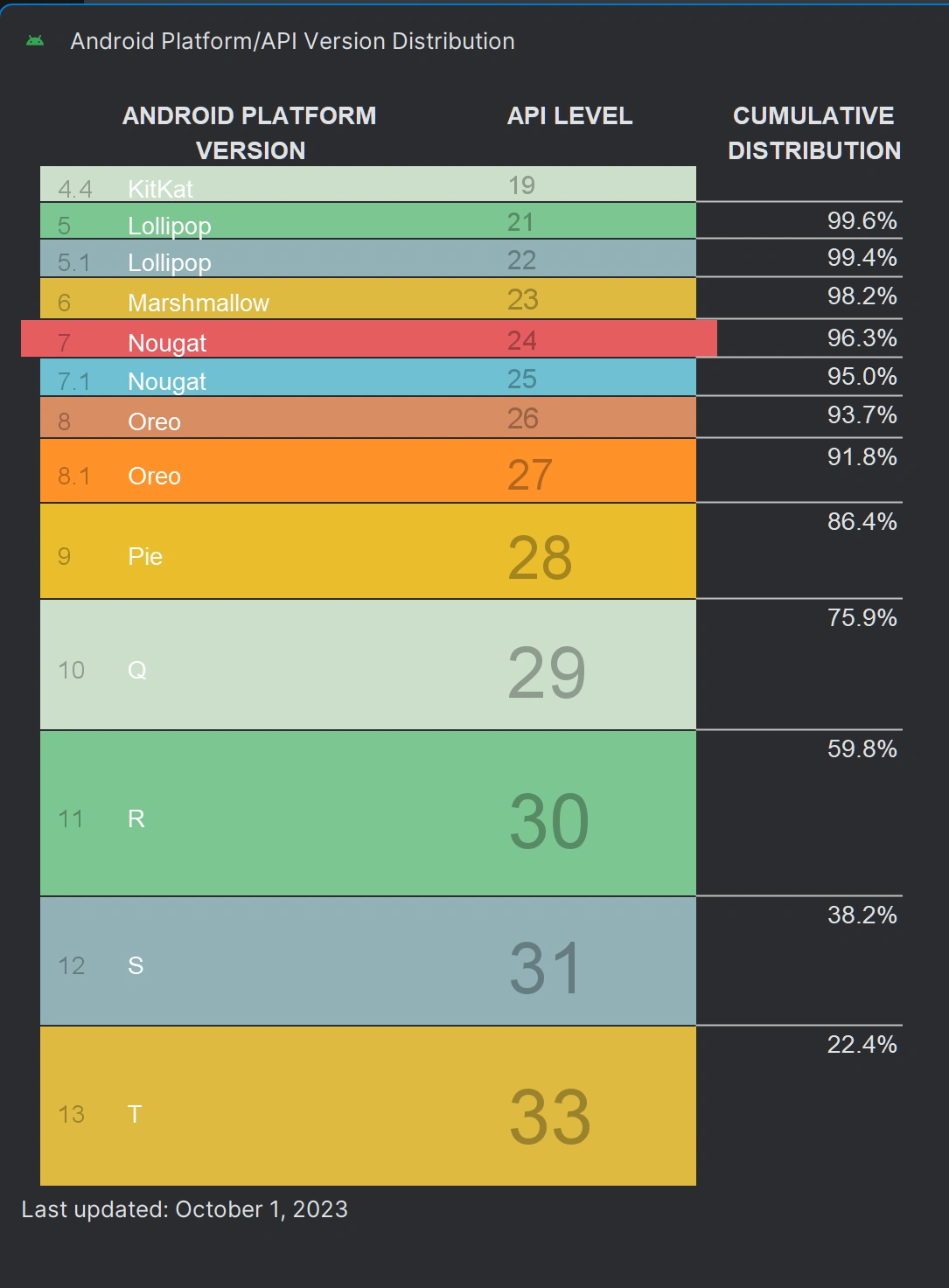
Android 15
The latest version of the Android OS is Android 15. It was released on October 15, 2024.
Plan for Setting Up React Native Android Development Environment
This plan outlines the steps to configure a Windows laptop for React Native Android development and debugging with a Samsung Galaxy Fold device.
Phase 1: Android SDK and Device Configuration
-
Verify Android SDK Platform Tools Location:
- Confirm the location of
platform-toolsdirectory within the Android SDK installation (e.g.,C:\Program Files\Android\Android Studio\platform-tools).
- Confirm the location of
-
Set System Environment Variable:
- Add the
platform-toolspath to the systemPATHenvironment variable. This allows you to runadbcommands from any command prompt. - Open System Properties (Control Panel -> System and Security -> System -> Advanced system settings -> Environment Variables).
- Edit the
PATHvariable in "System variables" (or create it if it doesn't exist). - Add a new entry with the path to
platform-tools(e.g.,C:\Program Files\Android\Android Studio\platform-tools). - Restart the computer for the changes to take effect.
- Add the
-
Enable Developer Options and USB Debugging on Samsung Galaxy Fold:
- On your Samsung Galaxy Fold:
- Go to Settings -> About phone -> Software information.
- Tap "Build number" seven times to enable Developer options.
- Go back to Settings, and you should see "Developer options" at the bottom.
- Open "Developer options" and enable "USB debugging".
- On your Samsung Galaxy Fold:
-
Connect Device and Verify ADB Connection:
- Connect your Samsung Galaxy Fold to your computer via USB.
- Open a command prompt or PowerShell window.
- Run the command
adb devices. - You should see your device listed. If prompted on your device, authorize USB debugging for your computer. If the device is listed as "unauthorized", revoke USB debugging authorizations in the developer options and reconnect. If the device is not found, ensure you have installed the appropriate USB drivers for Samsung devices. These can typically be obtained from the Samsung website or through Samsung Kies/Smart Switch.
Phase 2: React Native Environment Setup
-
Verify Node.js and Yarn Installation:
- Open a command prompt or PowerShell window.
- Run
node -vto verify Node.js is installed (version should be 22.15.0). - Run
yarn -vto verify Yarn is installed (version should be 1.22.22).
-
Install React Native CLI Globally:
- Run
yarn global add react-native-cli
- Run
-
Configure Android Environment Variables:
- Set the
ANDROID_HOMEenvironment variable to the location of your Android SDK.- Open System Properties (Control Panel -> System and Security -> System -> Advanced system settings -> Environment Variables).
- Add a new "System variable" named
ANDROID_HOMEand set its value to the Android SDK location (e.g.,C:\Users\<your_user>\AppData\Local\Android\\Sdk). You may need to create this directory if you only have Android Studio. The SDK can be downloaded using Android Studio's SDK Manager.
- Add the following SDK directories to your system
PATHvariable:%ANDROID_HOME%\platform-tools%ANDROID_HOME%\tools%ANDROID_HOME%\tools\bin%ANDROID_HOME%\emulator(if you plan to use the emulator)
- Set the
Phase 3: Project Setup and Device-Specific Considerations
-
Navigate to Project Directory:
- Open a command prompt or PowerShell window.
- Navigate to your React Native project directory:
cd C:\Users\supre\Desktop\CYF-React-Native-v-0.63
-
Install Project Dependencies:
- Run
yarn installto install all project dependencies.
- Run
-
Configure Metro Bundler:
- Metro should be configured automatically by React Native. If you encounter issues, you may need to manually configure the
metro.config.jsfile in your project. Common configurations involve setting theresetCacheoption to true or adjusting thetransformerorresolversettings. This is generally only needed for advanced configurations.
- Metro should be configured automatically by React Native. If you encounter issues, you may need to manually configure the
-
Run the App on the Device:
- Ensure your Samsung Galaxy Fold is connected and
adb deviceslists the device. - Run
yarn androidto build and install the app on your device.
- Ensure your Samsung Galaxy Fold is connected and
-
Foldable Screen Considerations:
- Testing Screen Transitions: Test how your app responds to screen folding and unfolding. Use Android Studio's emulator with foldable device configurations to simulate different screen sizes and orientations if you are not able to test all scenarios on the physical device.
-
Debugging in Android Studio (Optional):
- Open Android Studio and select "Attach debugger to Android process".
- Choose your React Native app process from the list.
- You can now set breakpoints and debug your Java/Kotlin code in Android Studio. For Javascript debugging, use Chrome Developer Tools by enabling remote debugging in your React Native app.
Will my phone get Android 13 update?
https://www.androidauthority.com/android-13-update-3202363/
Tutorial https://www.udacity.com/course/advanced-android-with-kotlin--ud940